AI Integration
Strety MCP: Run EOS with the AI tool you already use
Spending half your day in an AI tool? The Strety MCP (Model Context Protocol) connects your EOS® software to ChatGPT, Claude, and Microsoft Copilot — so you can ask about your Scorecard, update a Rock, log an Issue, or prep your next L10 from the same chat window where you’re already working.
Whatever you do writes back to Strety, where the rest of your operating system lives. Built for teams who run EOS in Strety and want it within reach of the AI tools they use every day.
What is the Strety MCP?
The Strety MCP is a Model Context Protocol connector that links your Strety EOS® data to the AI tool you already use daily.
Once connected, you can ask it to pull your Scorecard, update a Rock, log an Issue, check or create your To Dos straight in the chat — and every change writes back in Strety. It works with ChatGPT, Claude, Microsoft Copilot, Gemini, and other MCP tools that allow custom connectors.
How the Strety MCP Works
Connect your AI tool to Strety once. From then on, you can ask it to read and update your EOS data in plain language — and every change lands back in Strety.

Connect once
Link your AI tool to Strety with a secure sign-in. No new screens to learn, and no copy-pasting between apps.

Just ask
Ask your AI tool to pull your Scorecard, stand up a project, log an Issue, or check in on a Rock — all in plain language.

It lands in Strety
Every update writes back to Strety, where your team runs EOS — and the connection only reaches what your Strety permissions already allow.
A few things teams ask their AI tool to do
The Strety MCP works across your To Dos, Issues, Headlines, Scorecard, Rocks, Docs, Agendas, and Projects — so most of your operating system is a question away.
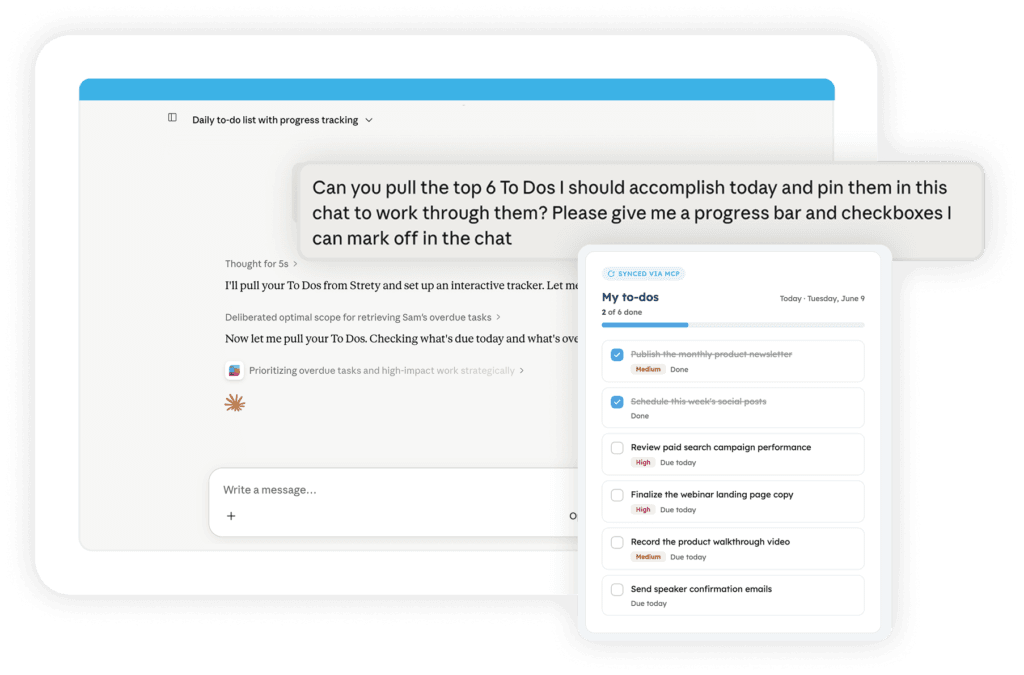
- Prep for a meeting:
"Pull last week's Scorecard and the open Issues for Thursday's L10." - Run a Project workstream:
"Create a project for the Q3 launch, add these To Dos with owners, and attach the brief." (This is exactly how our own marketing team runs day to day.) - Close out a session:
"I just finished my L10 — update my Rock and log this week's Scorecard numbers." - Find something fast:
"Give me links to the Docs related to the hiring plan we wrote last quarter."
How to get started with the Strety MCP
Connect your AI tool to Strety in a few steps, then start asking. (Exact steps vary slightly by AI tool — here’s the flow in Claude.)
Step 1:
Open your AI tool’s Plugin directory
In Claude or ChatGPT, look for “plugins” and find Strety in the directory. (For Microsoft copilot, you’ll be connecting the Strety agent. Full instructions on this help doc.)
Step 2:
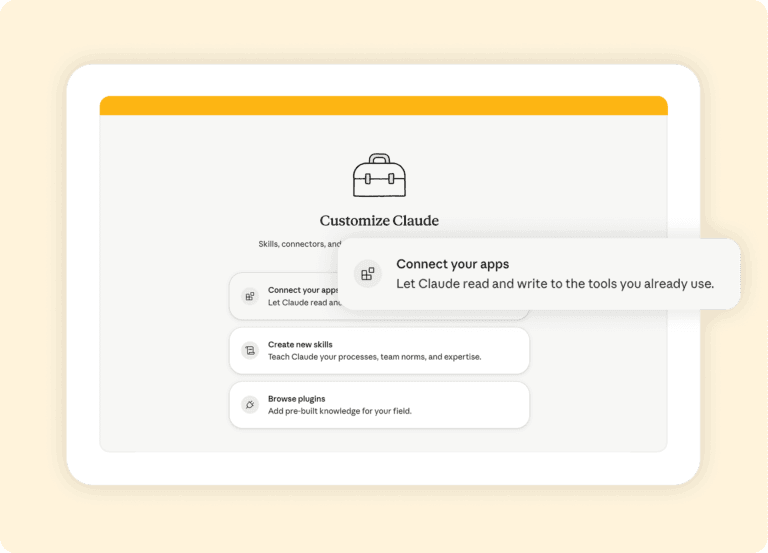
Add Strety
Add Strety as a Plugin
Step 3:
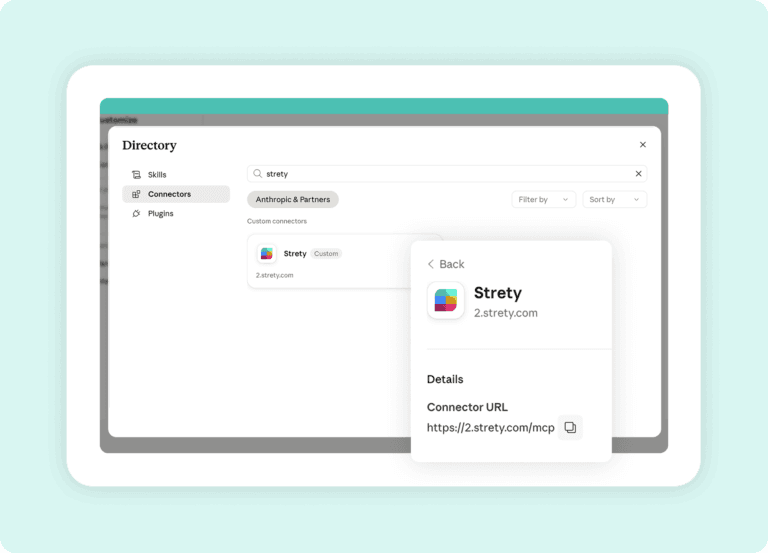
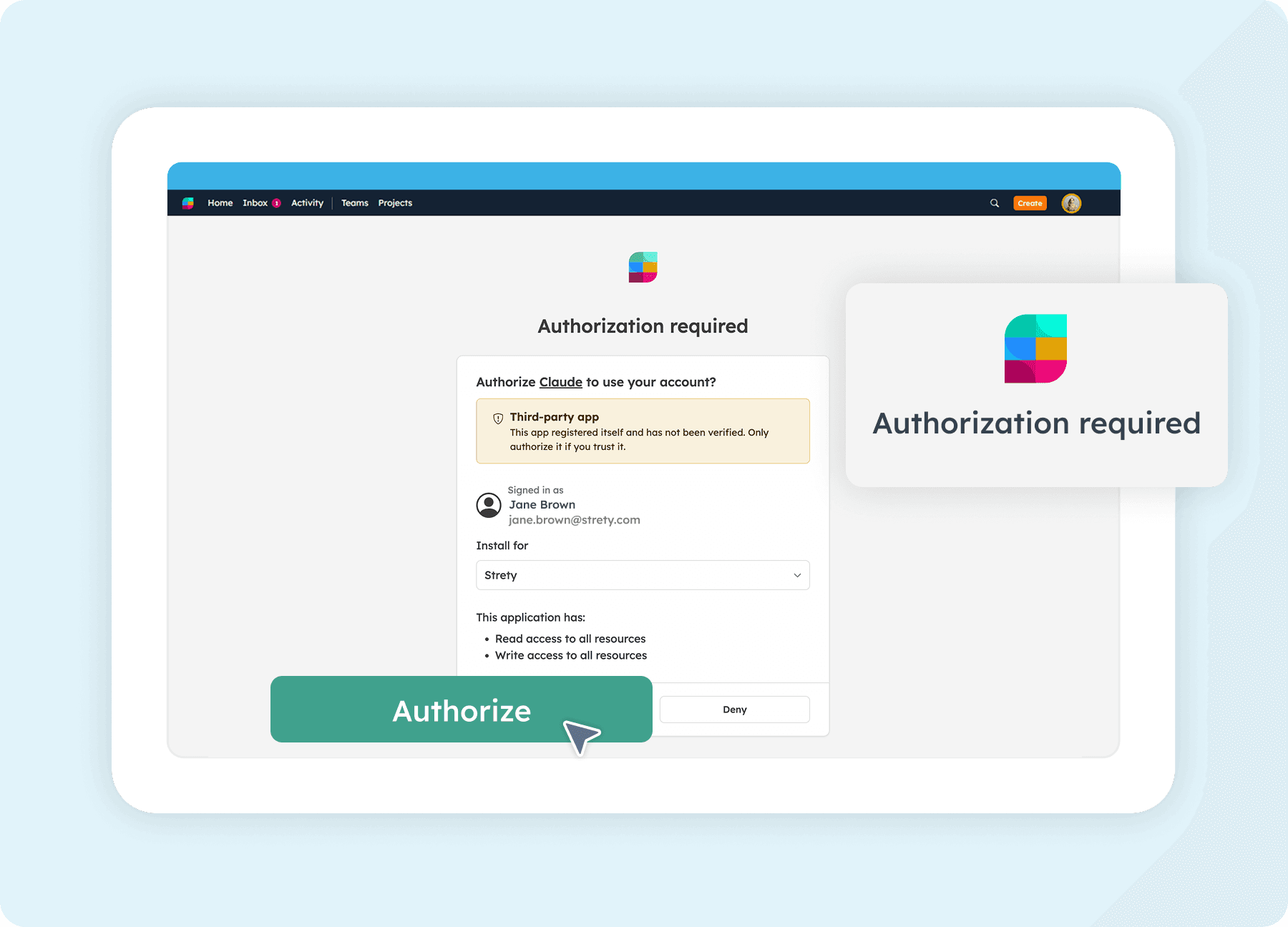
Sign in and authorize
Sign in to Strety and approve the connection. It uses a secure sign-in and respects the Strety permissions you already have
Step 4:
Start asking!
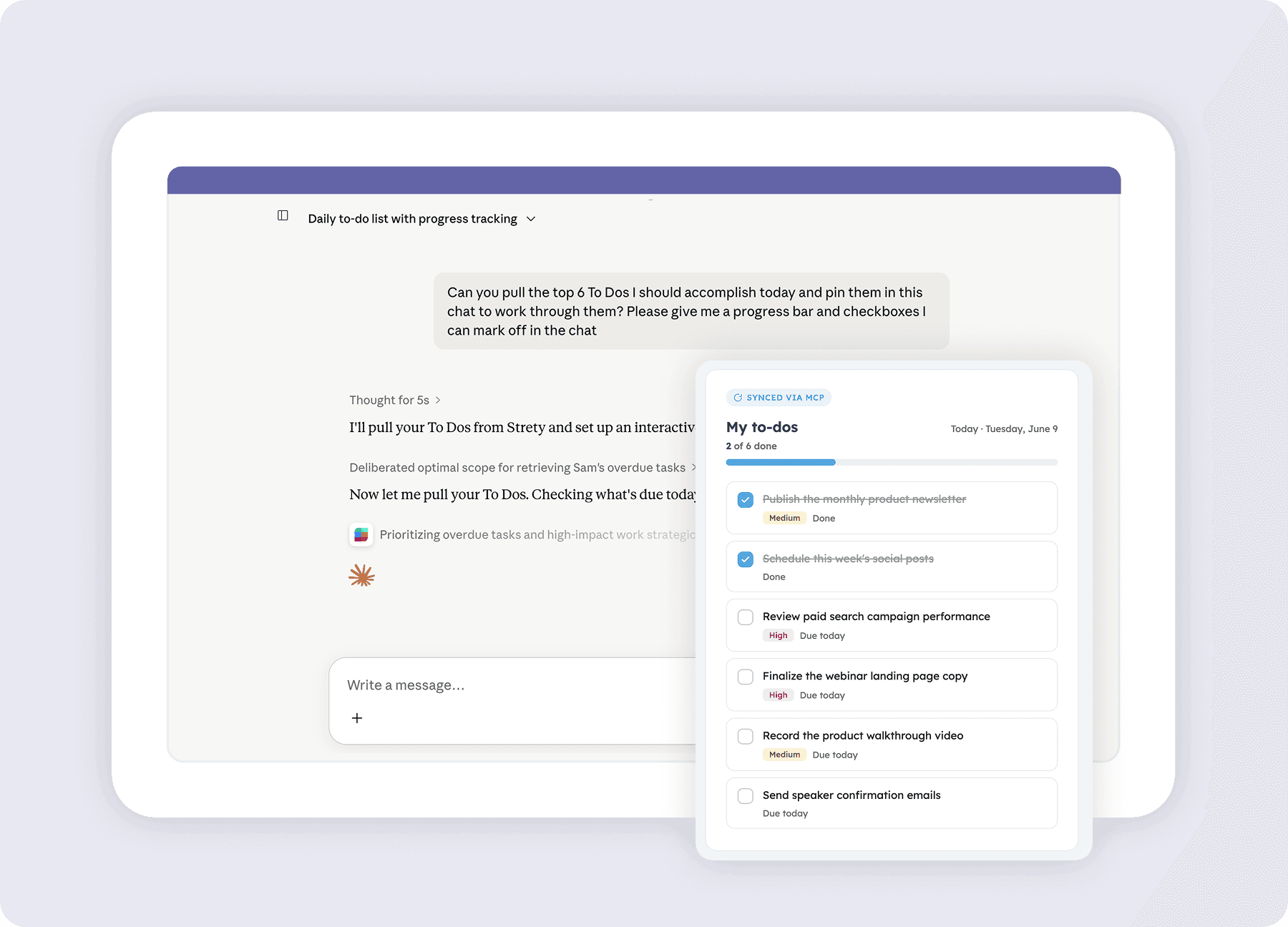
You’re ready to chat with your favorite EOS software — try “What’s on my Scorecard this week?” or “Create a To Do for me to prep Thursday’s L10,” and watch it land in Strety.

Frequently asked questions about the Strety MCP
Which AI tools does the Strety MCP work with?
The Strety MCP works with Claude, ChatGPT, Microsoft Copilot, Gemini (enterprise plan only) and other AI tools that support custom connectors. Because it’s built on the Model Context Protocol (an open standard), the list of compatible tools keeps growing.
Is my Strety data secure?
Yes. The connection uses a secure sign-in, and it only reaches what your own Strety permissions already allow. You’re not opening up anything you couldn’t already see and edit yourself in Strety.
Do I need to set this up company-wide?
No. Each person connects their own AI tool to their own Strety access, so you can start using it even if it isn’t rolled out across the whole company.
Do I need to be technical to use it?
No. Setup takes a few clicks, and once it’s connected you work in plain language — the same way you’d ask your AI tool anything else.
What can I actually do with it?
You can read and update your To Dos, Issues, Headlines, Scorecard measurables, Rocks, Docs, Agendas, and projects — and search across your content — all from your AI tool. Here’s a blog with four Strety MCP stories to help you get started.
How is my data handled by the AI tool I connect?
The Strety MCP passes your data to the AI tool you’ve connected. How that tool stores and uses your data is governed by that tool’s own data policies.
What is the Model Context Protocol (MCP)?
How is the Strety MCP different from copying data into ChatGPT?
Does Strety have security certifications?
Can I disconnect the Strety MCP at any time?
Is there an extra cost to use the Strety MCP?
What is the Strety MCP?
Can I connect to multiple Strety instances with the MCP?
Yes! You can use the MCP to connect with any Strety instance you’re a part of, with permissions to match. Great for coaches, fractional integrators, and anyone doing a lot of client work in Strety.
MCP Love 💜

The system has deep integrations into our other systems allowing To-do and other data to flow back and forth between the systems.

Strety’s intuitive UI and seamless integrations have been a breath of fresh air for our daily operations.
More to Explore
Strety MCP Help Doc
Want a full walkthrough on connecting your AI tool to Strety? Start here.
All Integrations
Discover more of Strety’s integrations to connect your fav tools with your EOS® implementation.
More Features
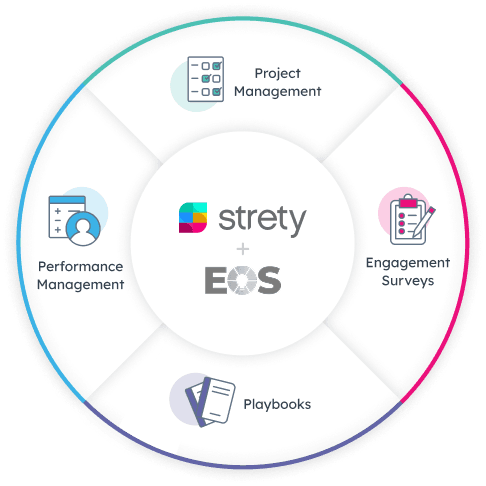
Check out Strety’s built-in tools for EOS® implementation plus everyday execution.
Want to bring EOS into your favorite AI tool?
Start your free trial to see how it feels to run your Scorecard, Rocks, and To Dos from the AI tool you already use every day.