
Outlook Integration
Create Issues, To Dos, and Headlines from your inbox with EOS software in Outlook
Move fast with Strety’s Outlook integration built for EOS teams running ops in Microsoft. Don’t let important info get lost in emails — quickly turn them into Issues, To Dos, or Headlines and they’re in Strety in seconds. Or work in Strety directly from Outlook to get more done in fewer tabs.
How the Strety’s Outlook integration works
Set up Strety in Outlook in a few clicks, then run your EOS workflow right alongside your emails.

Create from emails
Never miss a beat — click on the Strety icon from your emails to create Issues, To Dos, or Headlines.

Add assignees
Choose where the item needs to show in Strety by adding the right space and assignee.

Stay in your inbox
Need to check your EOS tools? Click on the Strety icon on the left-hand side and you’ll navigate directly in Strety. No more hopping on and off tabs.
How to set up the Microsoft Outlook integration in Strety
Three steps put your EOS workflow right next to your email. Note: Outlook on the web is the officially supported version.
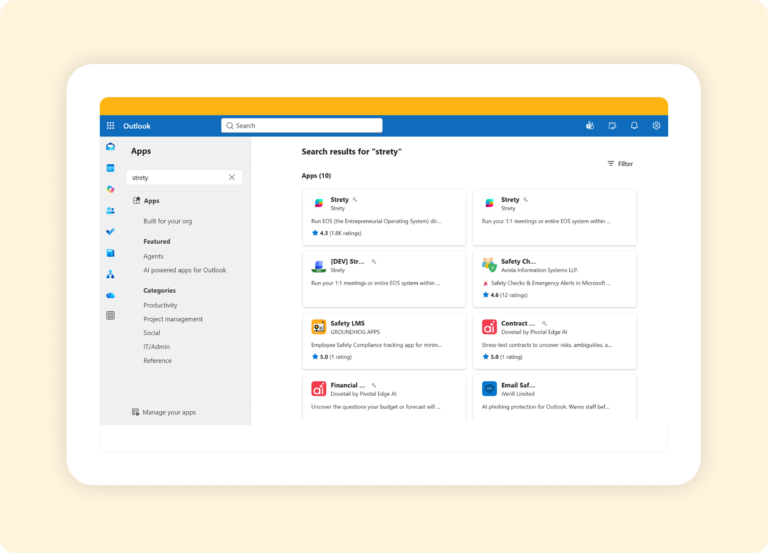
Step 1:
Add, pin, and connect Strety
Add the Strety app in Outlook and pin it, then open it from the left-hand side (under More apps if you don’t see it) and authenticate.
Step 2:
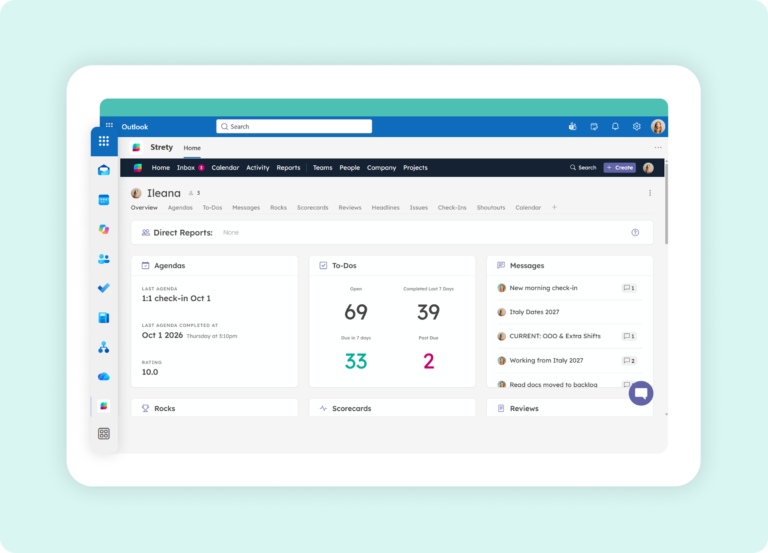
Work in Strety from Outlook
Click the Strety icon and Strety opens right inside Outlook. Check your Agendas, To Dos, Rocks, and Reports without leaving your email.
Step 3:
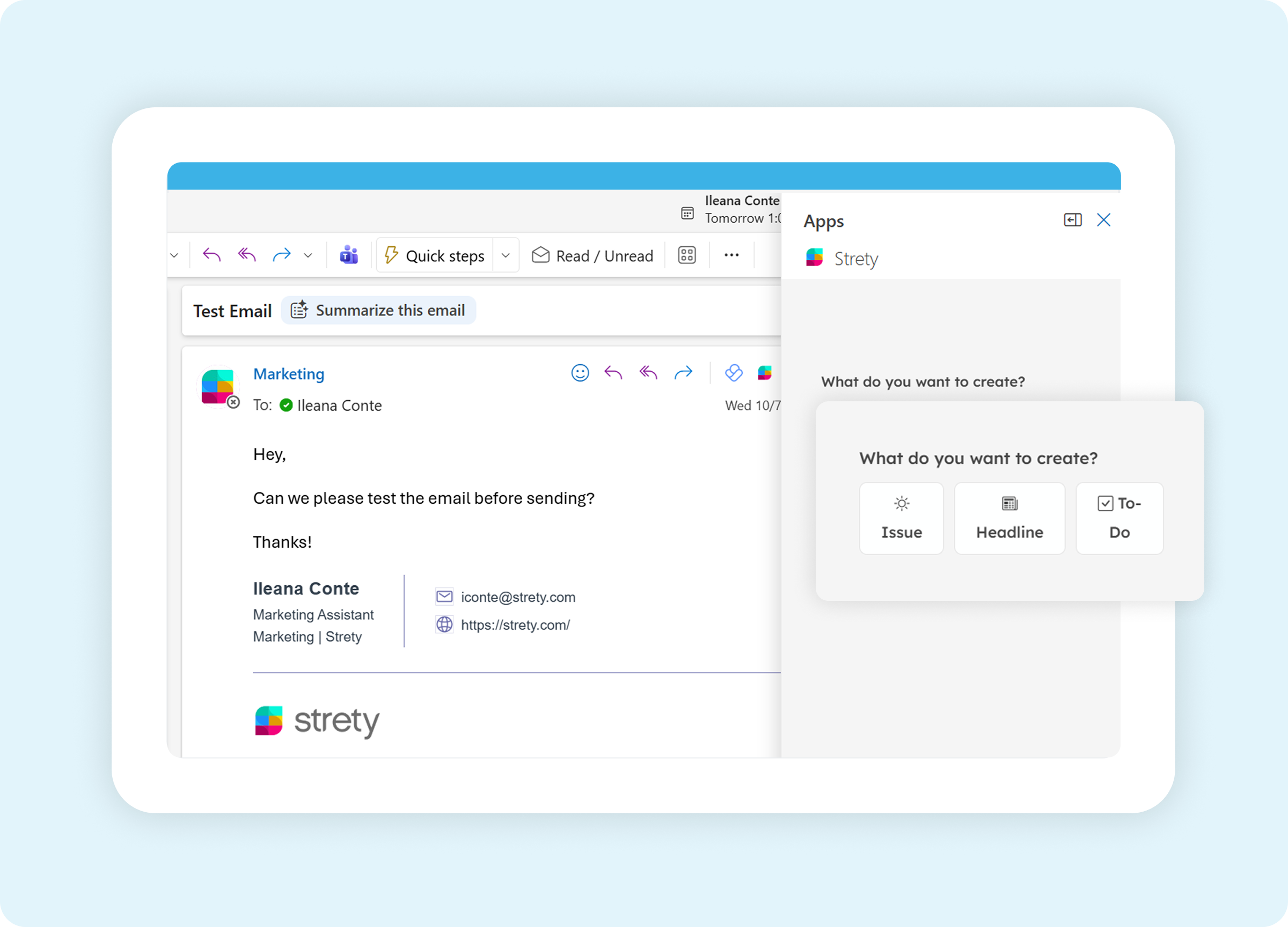
Turn emails into Strety items
Open any email, click the Strety icon, and choose Issue, To Do, or Headline. Pick the space it belongs to, and the item will show in Strety.

Frequently asked questions about the Strety Outlook integration
What does the Strety Outlook integration do?
It lets you create an EOS Issue, To Do, or Headline directly from any email in Outlook, without copying anything into a separate tab. Pick which Team or Person Space it belongs to, and it’s ready for your next L10 or 1:1.
Can I work in Strety without leaving Outlook?
Yes — open Strety inside Outlook to work in your Agendas, To Dos, Rocks, and Reports without switching tabs.
Does the Strety Outlook integration work with Outlook Desktop or Outlook Mobile?
Creating an Issue, To Do, or Headline from an email is officially supported on Outlook Web. Desktop and mobile have a separate setup process, but aren’t officially supported for that capability yet.
Do I need an IT admin to install the Strety app in Outlook?
Not necessarily — if your organization allows users to install Microsoft apps, you can add it yourself. If app installs are restricted, a Microsoft Admin will need to deploy it instead.
Is the Outlook integration included with my Strety plan?
Yes — it’s part of the core Strety platform, from $13/seat, per month, no contracts needed. See details at strety.com/pricing.
Can I try the Strety Outlook integration for free?
Yes — start your free 30-day trial, no credit card required, and connect Outlook before you commit to anything.
Strety's integrations love 

Strety made it easy to get issues, headlines, and to-dos to different meetings.
More to Explore
Help Docs
Want a full walkthrough on setting up the Strety + Microsoft Outlook integration? Start here.

All Integrations
Discover more of Strety’s integrations to connect your fav tools with your EOS® implementation.
More Features
Check out Strety’s built-in tools for EOS® implementation plus everyday execution.
Turn inbox madness into organized work in Strety
Try Strety for free for 30 days and experience what it feels to work calmer and smarter 😎