Wealthbox Integration
Strety’s Wealthbox Tasks Integration: Two-Way Sync for Advisors
Strety’s two-way Wealthbox integration links tasks automatically on both platforms, making your workspace (and life) way easier. Connect your EOS software with Wealthbox — no more duplicate updates or wondering which platform has the latest changes. Built for financial advisors, wealth management firms, and RIAs running EOS in Strety and managing client relationships in Wealthbox.
How the Strety + Wealthbox Integration Works
Stay on top of your workflow in fewer open tabs and clicks with the two-way sync between Strety and Wealthbox.

Quick-create
Open new tasks in just one click and get them in both platforms — no need to switch from one tab to the other.

Date sync
Your due dates will always stay updated on both platforms — no matter where you make the change.

Done in one click
Get your Tasks and To Dos closed in one platform — they’ll be automatically marked as completed in the other. Done and done!
How to get started with the Strety + Wealthbox integration
Keep your work aligned with the Strety Wealthbox Tasks integration in only four steps. Note: you need to use the same email associated with your Strety account.
Step 1:
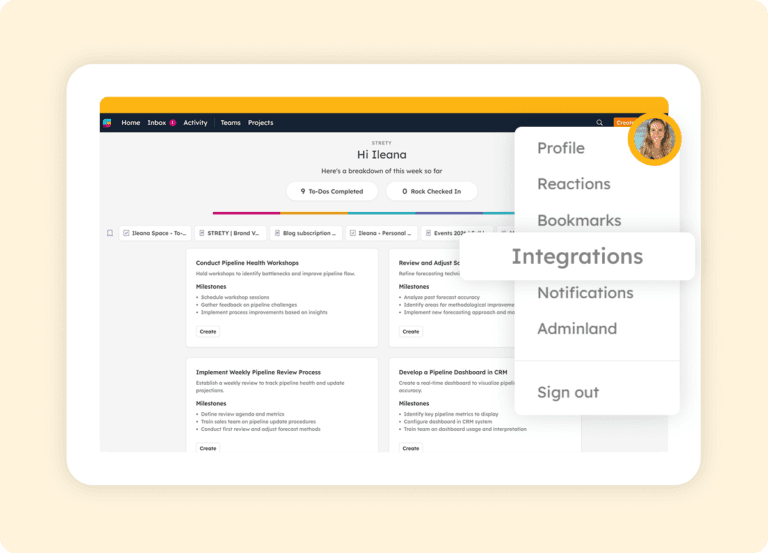
Select integrations under your profile
Click on Integrations under your Strety profile (the icon with your pic or initial).
Step 2:
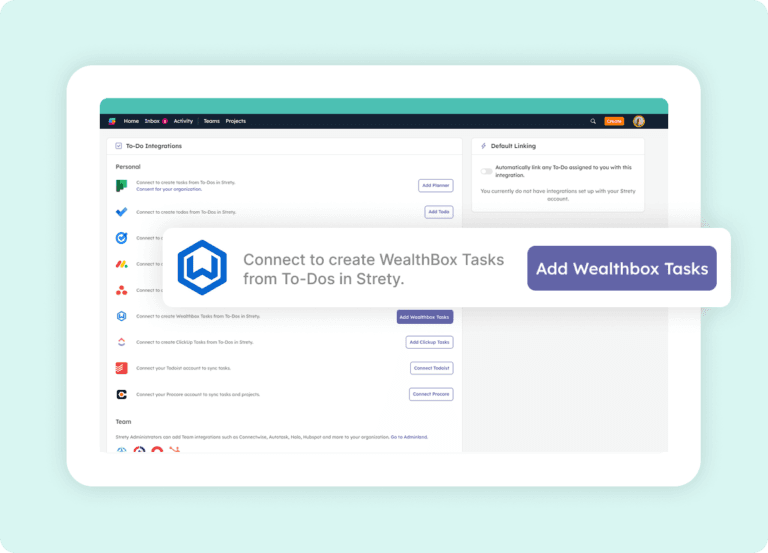
Click on Wealthbox
Select Wealthbox Tasks from the list.
Step 3:
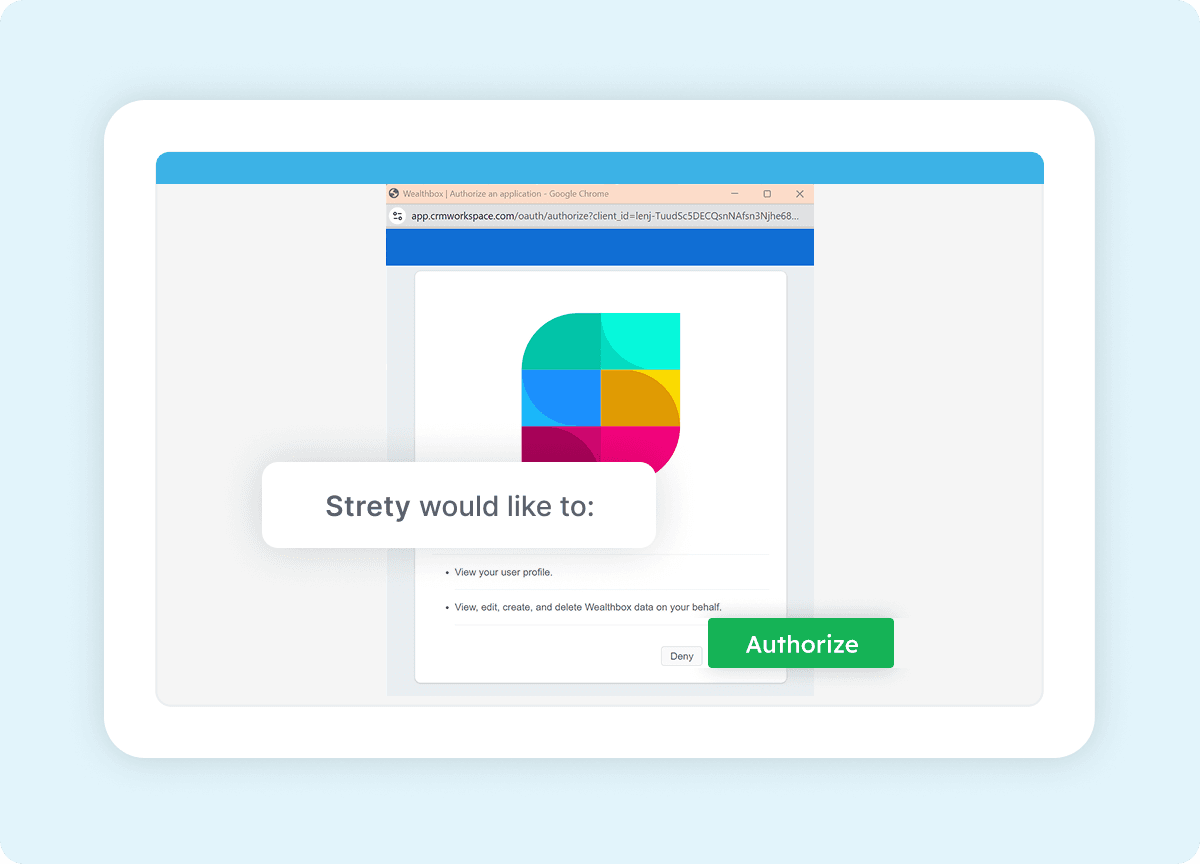
Authorize Strety
Authorize Strety to access your Wealthbox account.
Step 4:
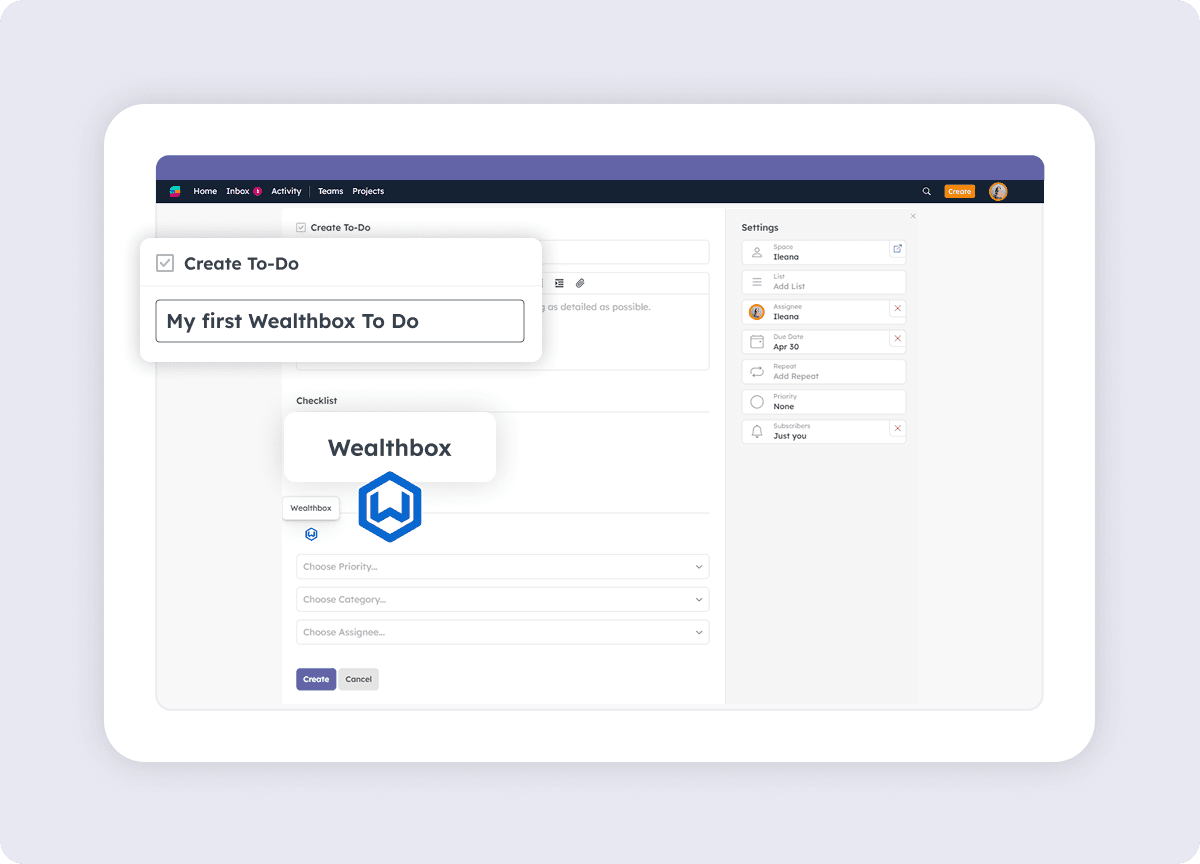
Create your linked tasks
Create your first linked To Do in Strety! Select the Wealthbox icon and choose the right priority, category and assignee — your new task will be right where you want it in Wealthbox.

Frequently asked questions about Strety’s Wealthbox Integration
How do I know if the Strety Wealthbox integration was successfully installed?
After adding the integration, create a new To Do in Strety. You’ll see the Wealthbox icon at the bottom of the To Do, which confirms the integration is connected and ready to sync tasks between the two platforms.
Is the Wealthbox integration included with Strety?
Yes. The Wealthbox integration is part of Strety’s integration ecosystem and available to all users at no additional cost. You’ll just need an active Wealthbox account to connect it.
Does the Wealthbox integration need to be implemented company-wide to work?
No. Wealthbox is a personal integration in Strety, so you can add it to your individual workflow even if your firm hasn’t rolled it out to the whole team. Set it up whenever you’re ready.
Can I set Wealthbox as my default integration in Strety?
Yes. Once the Wealthbox integration is installed, you’ll see an option to set it as your personal default. When enabled, every new To Do assigned to you will automatically link to Wealthbox — saving clicks on every task.
Does the assignee of a Strety To Do linked to Wealthbox need a Strety account?
No. The assignee of a Strety To Do linked to Wealthbox doesn’t need to be a Strety user. This is especially useful for advisor firms where admin staff manage tasks in Wealthbox but don’t use Strety directly.
What information syncs between Strety and Wealthbox?
The two-way sync covers due dates and completion status. If you change a task’s due date or mark it complete in either Strety or Wealthbox, the linked item updates automatically in the other platform.
If I close a task in Wealthbox, does it close the linked To Do in Strety?
Yes. Once a task is marked complete in Wealthbox, the linked To Do will close in Strety on the next sync, thanks to the two-way connection.
Can I link a Strety To Do to a specific Wealthbox category or priority?
Yes. When creating a linked To Do in Strety, you can choose the Wealthbox priority, category, and assignee — keeping your EOS work organized within your existing Wealthbox structure.
Can I set up multiple task integrations in Strety?
Yes. Strety supports multiple To Do integrations, including Wealthbox, Asana, ClickUp, Microsoft To Do, Microsoft Planner, Monday.com, HubSpot, Google Tasks, Todoist, and several PSAs. When creating a new To Do, you choose which integration to link it to.
Who is the Strety + Wealthbox integration built for?
The integration is built for financial advisors, RIAs, and wealth management firms who run EOS in Strety and manage client relationships in Wealthbox. It’s especially useful for firms whose advisors and support staff share task ownership without all needing access to the same tools.
What financial advisors love about Strety 💜

The fact that you clearly use EOS in your business while building Strety for others using EOS really shows. Continue to appreciate the “little things” that show up in the usability of the software that really communicates ‘oh yeah, these folks actually USE their own software.’ Keep it up!

Overall, with Strety, it’s easier to be hyper-focused. Organizing ourselves, having meetings where we know exactly what needs to get done, and nothing falls through the cracks.
More to Explore
All Integrations
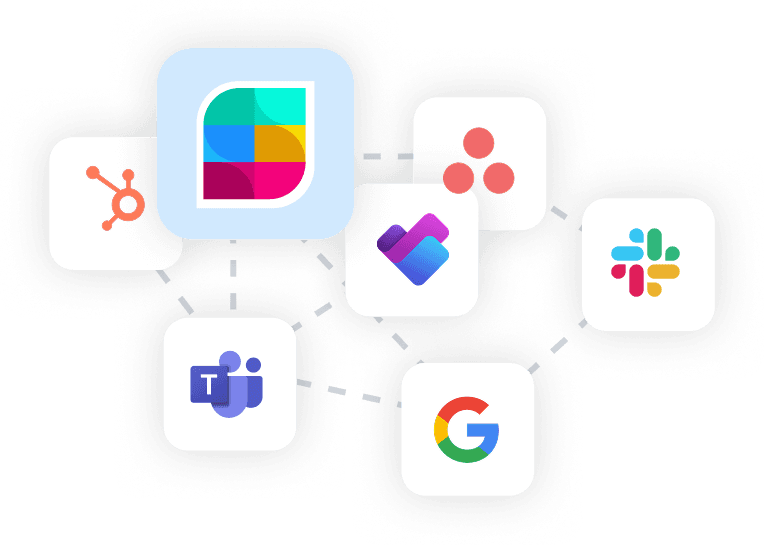
Discover more of Strety’s integrations to connect your fav tools with your EOS® implementation.
More Features
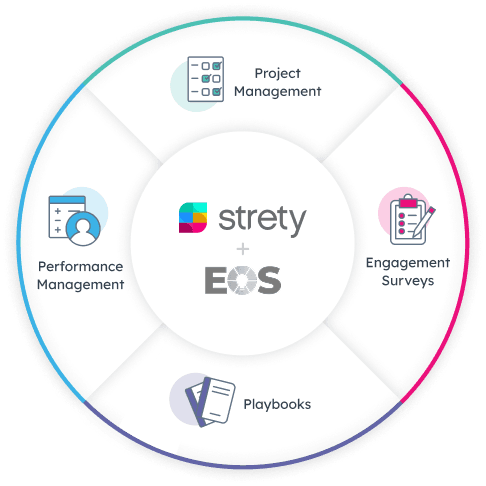
Check out Strety’s built-in tools for EOS® implementation plus everyday execution.
Want to test-drive the Strety + Wealthbox integration?
Start your free trial and see how it feels to integrate your EOS software into your central hub. Spoiler alert: you’ll find collaborating with your colleagues easier, and the days will get calmer 😎