Strety and ClickUp logos linked with a two-way sync icon, representing the Strety ClickUp integration
ClickUp Integration

Strety's ClickUp Integration: Two-Way Sync for EOS Teams

Strety’s two-way ClickUp integration syncs your To Dos and ClickUp tasks automatically across both platforms. Save tons of clicks (and time) with linked tasks and enjoy the calm of fewer tabs 😎 Built for teams who run EOS in Strety and manage tactical execution in ClickUp.

How the Strety + ClickUp integration works

Connect Strety and ClickUp with two-way sync to keep To Dos, tasks, and due dates aligned across both platforms in real time.
Strety Easy icon

Create in one click

Add a linked To Do in Strety (and your synced task in ClickUp) with just one click — it’s that simple.
Strety Sync icon

Sync updates

Your To Dos in Strety get automatically updated in ClickUp — and vice versa. No need to hop on and off platforms.
Strety Done x 2 icon

Done (and done)

You close a task on one platform, it’s closed on the another. You click once, your tasks disappear twice.

How to Set Up the ClickUp Integration in Strety

Set up takes about two minutes. Follow these four steps to start syncing your Strety To Dos with ClickUp tasks. Note: You’ll need an active ClickUp account using the same email as your Strety account.

Step 1:
Open Your Strety Integrations Settings
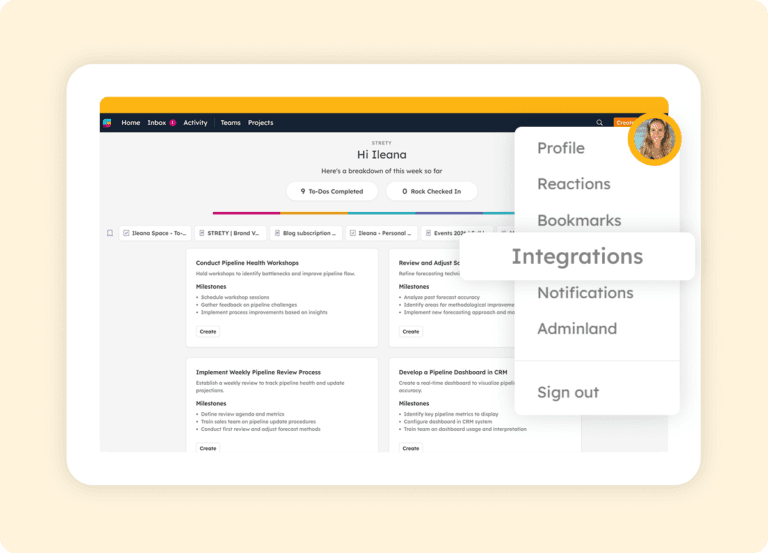
Under your Strety profile (where the icon with your pic or initial lives), click on Integrations.
Strety profile menu showing the Integrations option

Step 2:
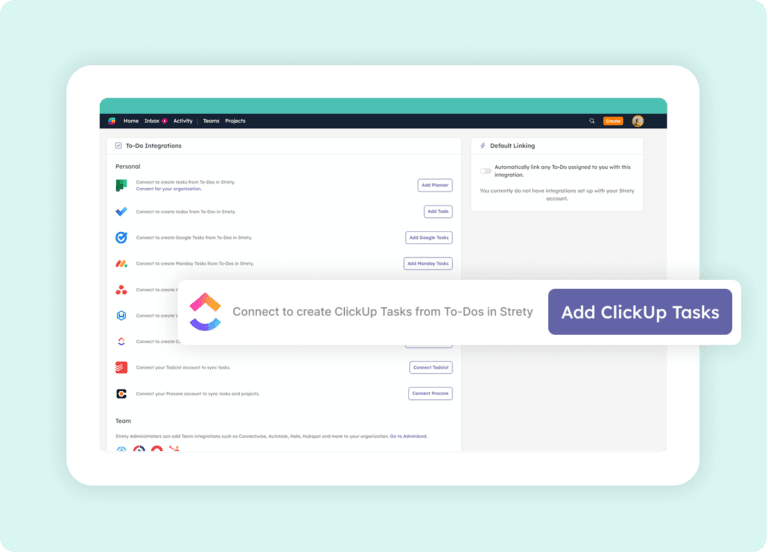
Add the ClickUp Integration

Choose Add ClickUp from the displayed list of integrations.
Strety integrations list showing Add ClickUp Tasks

Step 3:
Select Your ClickUp Workspace

Choose the ClickUp workspace where your synced tasks should live. If you have multiple workspaces, pick the one your team uses for day-to-day execution.
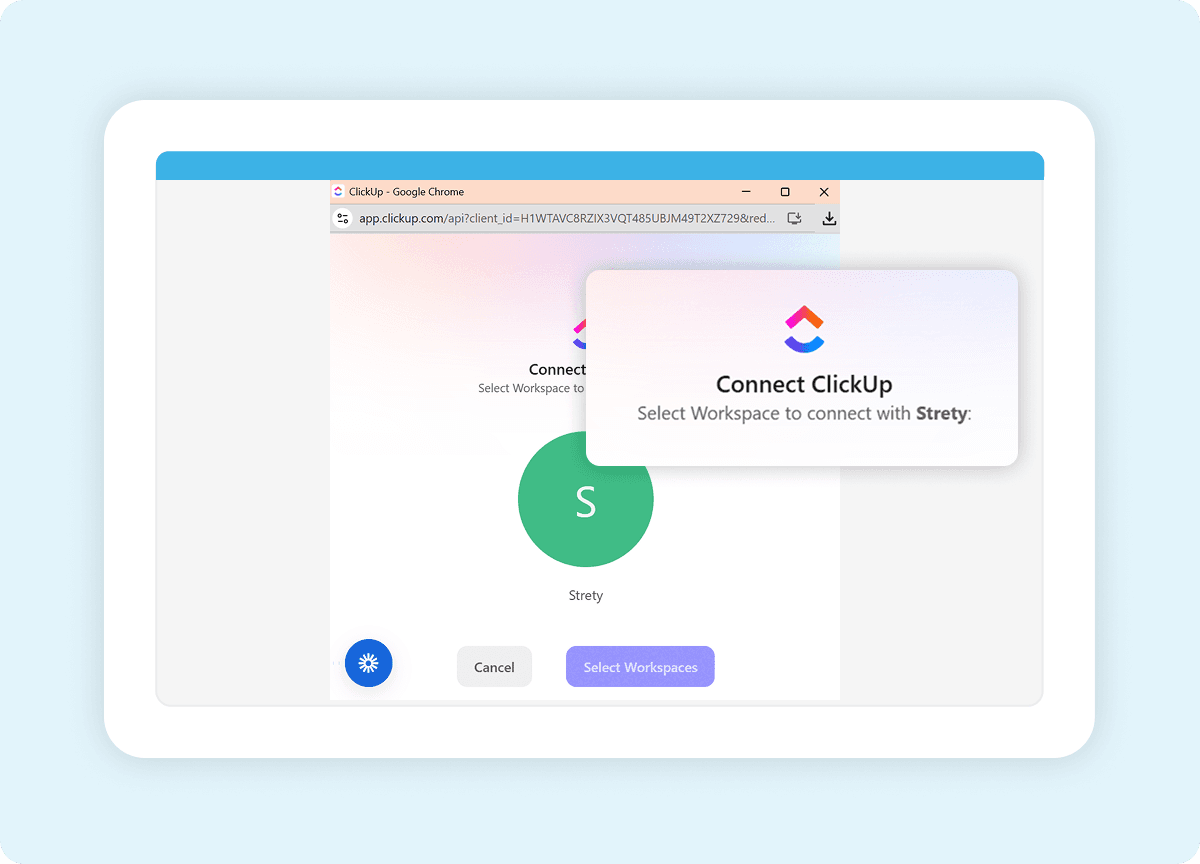
ClickUp workspace selection screen during Strety integration setup

Step 4:
Create Your First Linked To Do
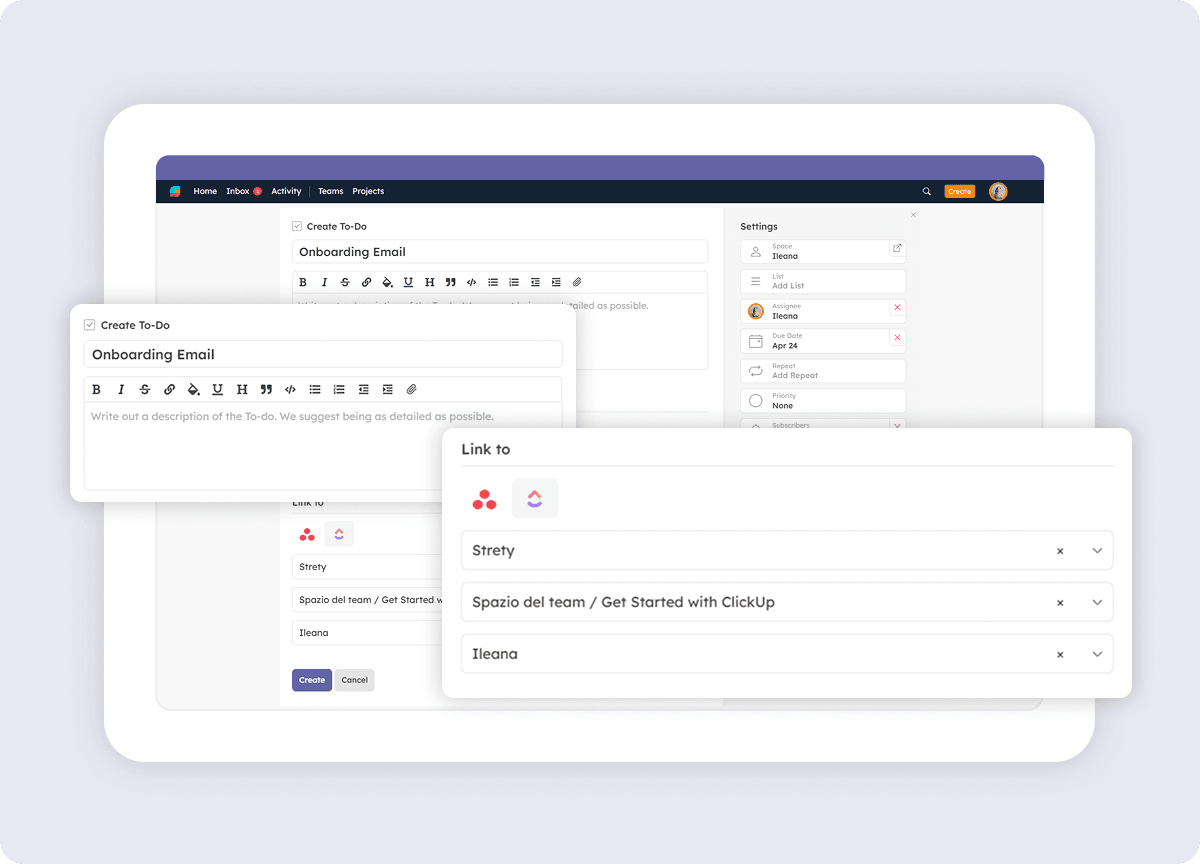
Start creating your linked To Dos! Add a To Do in Strety, set the ClickUp Workspace and section, and your To Do will appear in ClickUp — right where you want it. That’s it — your Strety To Dos and ClickUp tasks will now sync automatically in both directions.
Strety To Do linked to a ClickUp task, showing workspace and section selection

Frequently asked questions about the Strety + ClickUp integration

After installing the ClickUp integration in Strety, create a new To Do. You’ll see the ClickUp icon under “Linked To” at the bottom of the To Do, which confirms the integration is connected and ready to sync tasks between the two platforms.

Yes. The ClickUp integration is part of Strety’s integration ecosystem and available to all users at no additional cost. You’ll just need an active ClickUp account to connect it.

No. ClickUp is a personal integration in Strety, so you can add it to your individual workflow even if your company hasn’t rolled it out to the whole team. Set it up whenever you’re ready.
Yes. Once the ClickUp integration is installed, you’ll see an option to set it as your personal default. When enabled, every new To Do assigned to you will automatically link to ClickUp — saving clicks on every task.
The two-way sync covers due dates and completion status. If you change a task’s due date or mark it complete in either Strety or ClickUp, the linked item updates automatically in the other platform.
Strety syncs with ClickUp every 30 minutes automatically. You can also trigger a manual sync directly from any linked To Do if you need an update faster.
Yes. Once a task is marked complete in ClickUp, the linked To Do will close in Strety on the next sync, thanks to the two-way connection.
Yes. Date changes and completion status are reflected in the linked Strety To Do automatically through the two-way sync.

Yes. Strety supports multiple To Do integrations, including ClickUp, Asana, Microsoft To Do, Microsoft Planner, Monday.com, HubSpot, Google Tasks, Todoist, and several PSAs. When creating a new To Do, you choose which integration to link it to.

The integration is built for EOS teams who run their accountability and meeting cadence in Strety but use ClickUp for tactical execution. It’s especially useful for teams with complex ClickUp workflows who want EOS visibility without disrupting their existing setup.

What people love about Strety’s ClickUp integration 💜

Great EOS tool for project management and performance management with two-way integrations with Microsoft teams, Asana, Slack…etc. Super easy to use!

Strety makes running EOS effortless, so we can focus on scaling our business. For us, the integration for task management is the killer feature.

More to Explore
Strety Help Docs

Help Docs

Want to make ClickUp your default To Do integration in Strety? Start here.
Strety logo and other integrations logo, including Asana, HubSpot, Slack, Planner, Teams and Google

All Integrations

Discover more of Strety’s integrations to connect your fav tools with your EOS® implementation.
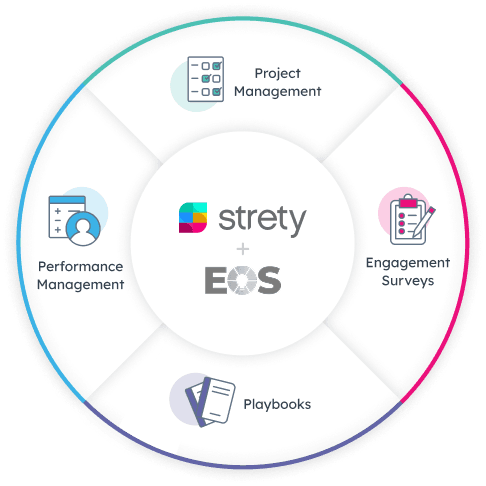
Strety wheel showing EOS+ features, including Project Management, Engagement Surveys, Playbooks, Performance Management

More Features

Check out Strety’s built-in tools 
for EOS® implementation plus everyday execution.

Want to test-drive the Strety + ClickUp integration?

Start your free trial now to experience how it feels to connect your EOS software with your favorite tools. Not gonna lie — it’s sweet.
;