Monday.com Integration
Strety's Monday.com Integration: Two-Way Sync for EOS Teams
Strety’s two-way integration with Monday.com keeps your tasks and team in sync with one-click updates. Free your screen space (and your mind) from too many tabs — no more switching from one platform to the other. Designed for teams running EOS in Strety and tracking work on Monday.com.
How the Strety + Monday.com Integration Works
Keep your projects aligned in your favorite platforms without hopping on and off tabs with the two-way sync.

Click once
You create the task once, it appears twice. With the two-way sync, your Strety To Do will automatically appear in your Monday.com board.

Stay synced
Any changes to your tasks due dates will always stay in sync — you make the change on either platform, it also gets updated on the other.

Done all over
Task completed! You update the task in one platform and it gets marked as done in both — it’s that simple.
How to get started with the Strety + Monday.com integration
Setup takes about two minutes. Follow these four steps to start syncing your Strety To Dos with Monday.com tasks. Note: You’ll need an active Monday.com account using the same email as your Strety account.
Step 1:
Open Integrations settings
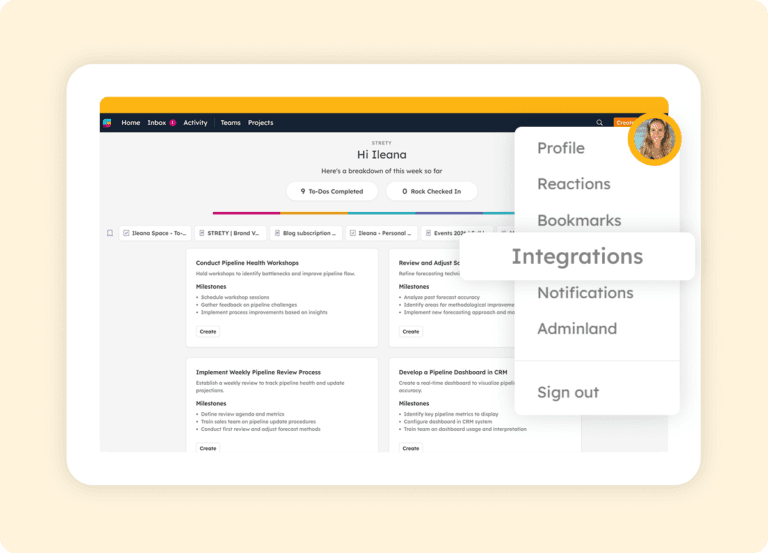
Go to your Strety profile (where there’s the icon with your pic or initial), and select Integrations.
Step 2:
Choose Monday.com
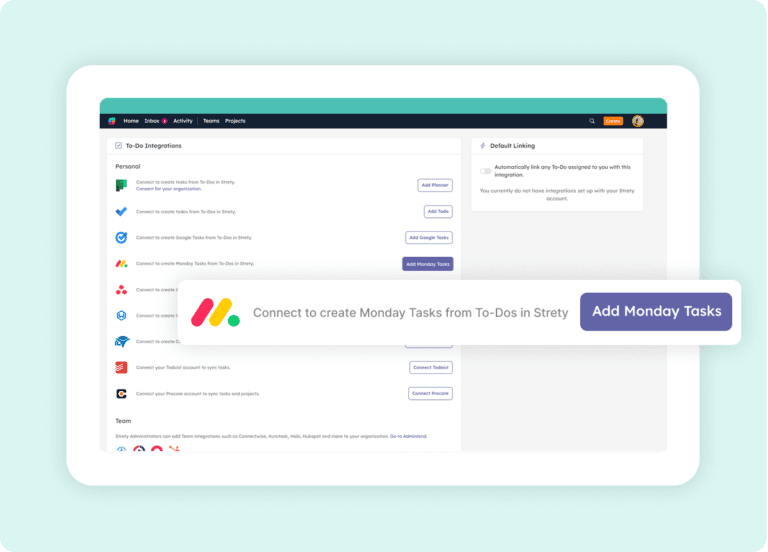
Choose Monday.com from the list of Strety’s integrations.
Step 3:
Give authorization
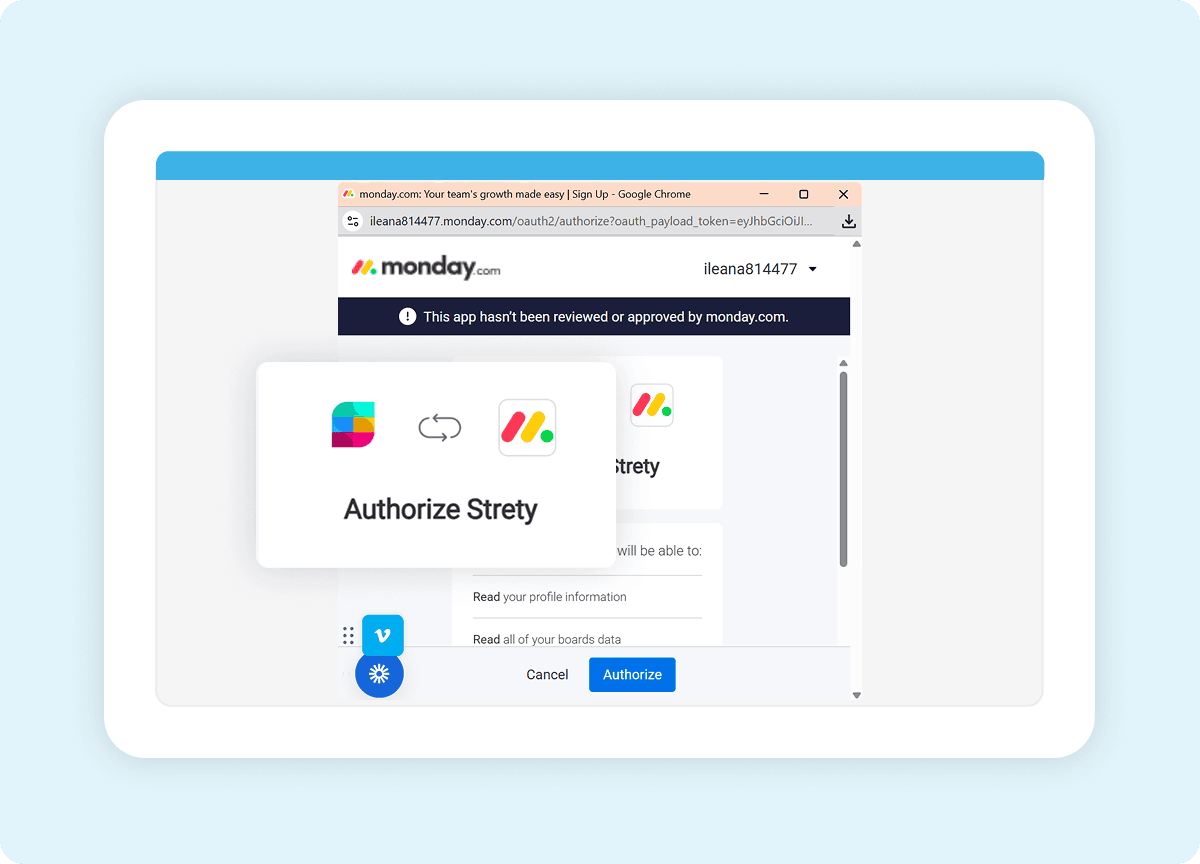
Provide authorization to link the Strety app to your Monday.com account (you might need a Monday.com Admin first to install the Strety App).
Step 4:
Create your linked To Dos!
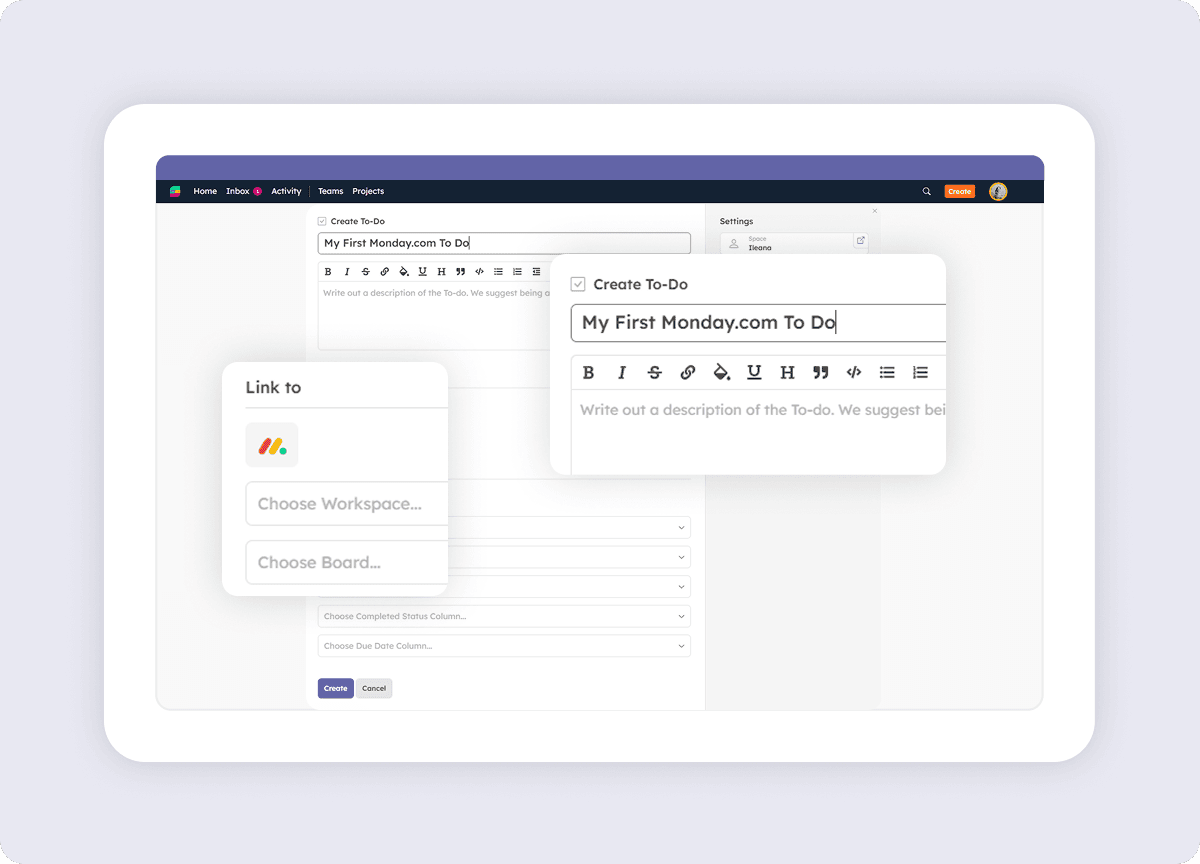
Add your first To Do in Strety linked to Monday.com by clicking on the Monday.com’s icon at the bottom of the To Do. Then choose the Board, Group, and select the Status & Date Column. You’ve now synced the task’s status and due date with Strety — your task will be right where you want it on Monday.com!

Frequently asked questions about Strety’s Monday.com Integration
How do I know if the Strety Monday.com integration was successfully installed?
After installing the Monday.com integration, create a new To Do in Strety. You’ll see the Monday.com icon at the bottom of the To Do, which confirms the integration is connected and ready to sync tasks between the two platforms.
Is the Monday.com integration included with Strety?
Yes. The Monday.com integration is part of Strety’s integration ecosystem and available to all users at no additional cost. You’ll just need an active Monday.com account to connect it.
Does the Monday.com integration need to be implemented company-wide to work?
No. Monday.com is a personal integration in Strety, so you can add it to your individual workflow even if your company hasn’t rolled it out to the whole team. Set it up whenever you’re ready.
Can I set Monday.com as my default integration in Strety?
Yes. Once the Monday.com integration is installed, you’ll see an option to set it as your personal default. When enabled, every new To Do assigned to you will automatically link to Monday.com — saving clicks on every task.
What information syncs between Strety and Monday.com?
The two-way sync covers due dates and completion status. If you change a task’s due date or mark it complete in either Strety or Monday.com, the linked item updates automatically in the other platform.
How fast is the sync between Strety and Monday.com?
Strety syncs with Monday.com every 30 minutes automatically. You can also trigger a manual sync directly from any linked To Do if you need an update faster.
If I close a task in Monday.com, does it close the linked To Do in Strety?
Yes. Once a task is marked complete in Monday.com, the linked To Do will close in Strety on the next sync, thanks to the two-way connection.
Can I link a Strety To Do to a specific Monday.com board or group?
Yes. When creating a linked To Do in Strety, you can choose the Monday.com Board, Group, Status Column, and Date Column — keeping your EOS work organized within your existing Monday.com structure.
Why might I need a Monday.com admin to set up the integration?
Some Monday.com workspaces restrict who can install apps. If your workspace has app installation restrictions, a Monday.com admin will need to install the Strety app first before individual users can authorize the connection.
Can I set up multiple task integrations in Strety?
Yes. Strety supports multiple To Do integrations, including Monday.com, Asana, ClickUp, Microsoft To Do, Microsoft Planner, HubSpot, Google Tasks, Todoist, Procore, and several PSAs. When creating a new To Do, you choose which integration to link it to.
Who is the Strety + Monday.com integration built for?
The integration is built for teams who run their accountability and meeting cadence in Strety and use Monday.com for project management. It’s especially useful for teams whose project boards live in Monday.com but who want their EOS Rocks and L10 To Dos connected without manual updates.
What people love about Strety’s Monday.com integration 💜

Strety, the software that we use for EOS, also ties to all of our other tools and processes with simple but powerful integrations.

No other tool we evaluated came close to feature parity with the EOS philosophy while also implementing the critical integrations we need as an organization to make EOS work for us!
More to Explore
Help Docs
Want a deep dive into setting up the Strety + Monday.com integration? Start here.

All Integrations
Discover more of Strety’s integrations to connect your fav tools with your EOS® implementation.

More Features
Check out Strety’s built-in tools for EOS® implementation plus everyday execution.
Want to test-drive the Strety + Monday.com integration?
Begin your free trial now to enjoy the freedom of fewer tabs and less confusion.