ClickUp Integration
Strety's ClickUp Integration: Two-Way Sync for EOS Teams
How the Strety + ClickUp integration works

Create in one click

Sync updates

Done (and done)
How to Set Up the ClickUp Integration in Strety
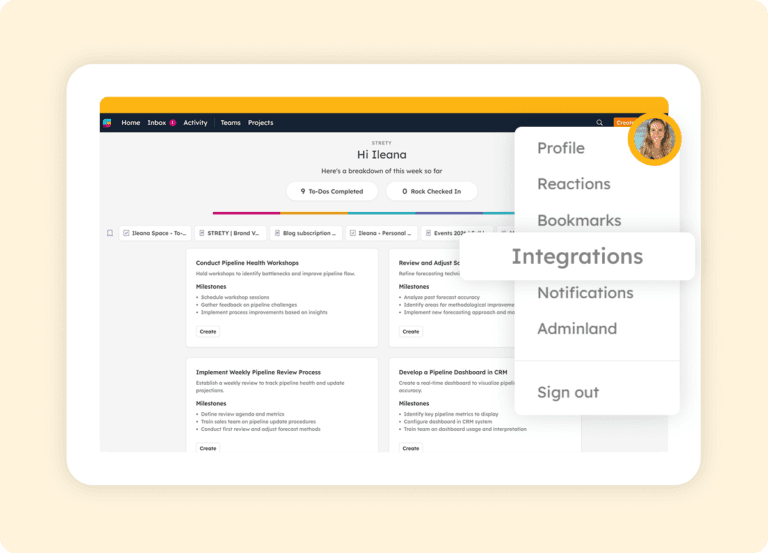
Step 1:
Open Your Strety Integrations Settings
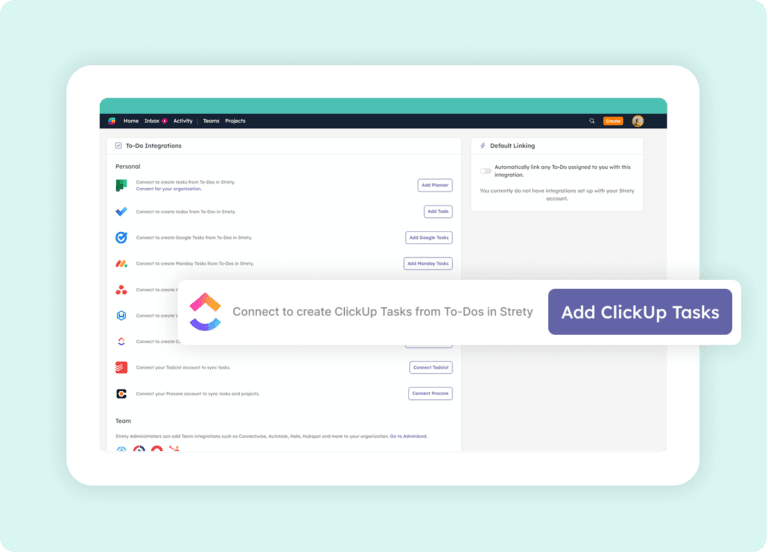
Step 2:
Add the ClickUp Integration
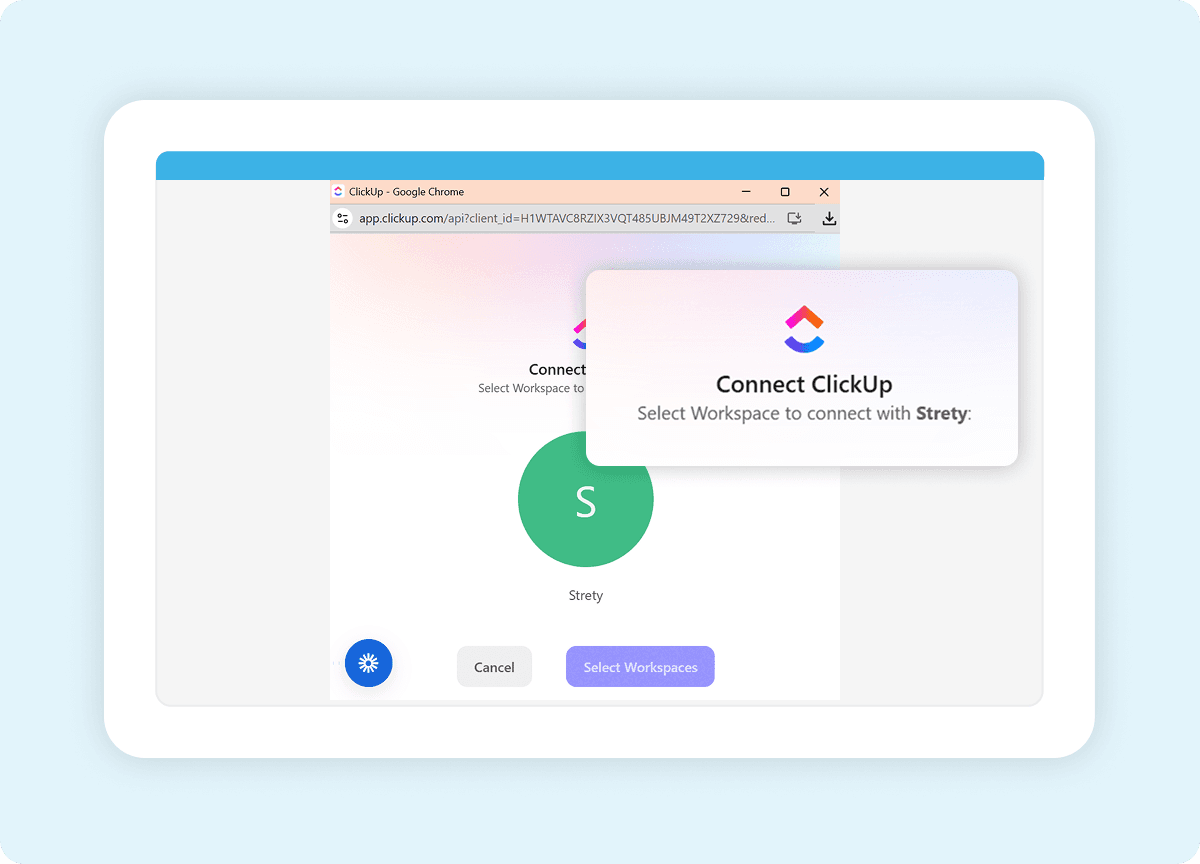
Step 3:
Select Your ClickUp Workspace
Choose the ClickUp workspace where your synced tasks should live. If you have multiple workspaces, pick the one your team uses for day-to-day execution.
Step 4:
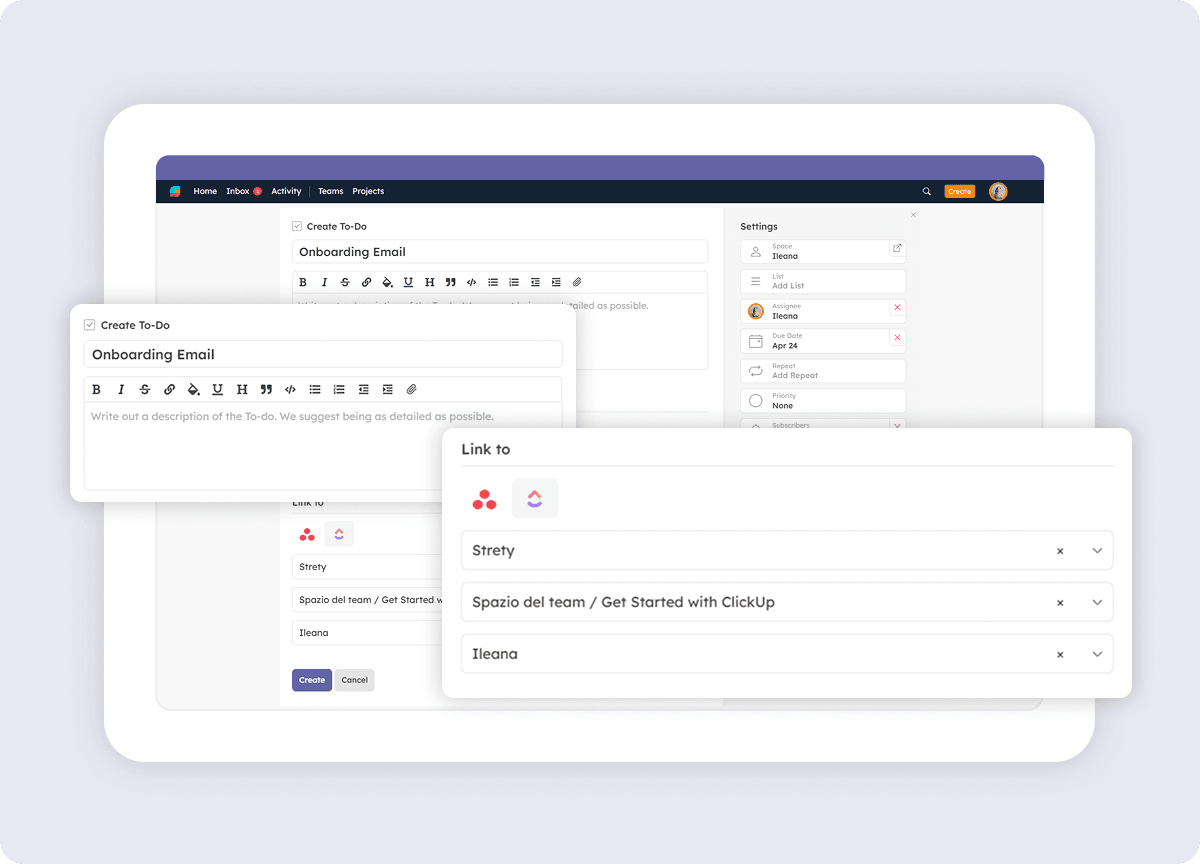
Create Your First Linked To Do

Frequently asked questions about the Strety + ClickUp integration
How do I know if the Strety ClickUp integration was successfully installed?
Is the ClickUp integration included with Strety?
Yes. The ClickUp integration is part of Strety’s integration ecosystem and available to all users at no additional cost. You’ll just need an active ClickUp account to connect it.
Does the ClickUp integration need to be implemented company-wide to work?
Can I set ClickUp as my default integration in Strety?
What information syncs between Strety and ClickUp?
How fast is the sync between Strety and ClickUp?
If I close a task in ClickUp, does it close the linked To Do in Strety?
Are ClickUp task updates visible in Strety To Dos?
Can I set up multiple task integrations in Strety?
Yes. Strety supports multiple To Do integrations, including ClickUp, Asana, Microsoft To Do, Microsoft Planner, Monday.com, HubSpot, Google Tasks, Todoist, and several PSAs. When creating a new To Do, you choose which integration to link it to.
Who is the Strety + ClickUp integration built for?
What people love about Strety’s ClickUp integration 


Strety makes running EOS effortless, so we can focus on scaling our business. For us, the integration for task management is the killer feature.
More to Explore

All Integrations
Discover more of Strety’s integrations to connect your fav tools with your EOS® implementation.
More Features
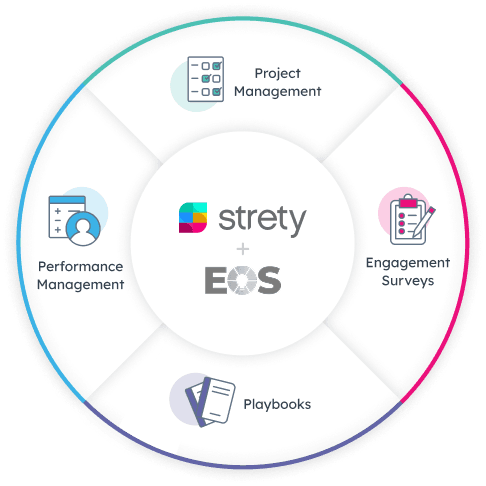
Check out Strety’s built-in tools for EOS® implementation plus everyday execution.