Strety and Procore logos linked with a two-way sync icon, representing the Strety Procore integration
Procore Integration

Strety’s Procore Integration: Two-Way Sync for GCs Running on EOS

Strety’s two-way Procore integration syncs your tasks on both platforms in just one click. Say goodbye to duplicate updates and get the bricks of your work aligned more efficiently. Created for construction teams running EOS in Strety and project management in Procore.

How the Strety + Procore Integration Works

Get your Strety To Dos and Procore Tasks auto-updated — no more hopping on and off software with the two-way sync.
Strety Easy icon

Create once

Create new tasks in one platform and have them added to the other without logging in. You create once, we add twice.

Strety Sync icon

Synced dates

Any changes to your due dates on a task will be reflected on both platforms — regardless of where you make the update.
Strety Done x 2 icon

Auto-notify assignees

Enable the “Send unsent task items” setting in your integration to make sure Procore assignees get notified the moment new tasks are created from Strety — no pending queue.

How to get started with the Strety + Procore integration

Setup takes about two minutes per user. Follow these four steps to start syncing your Strety To Dos with Procore tasks.

Before you start: A Procore admin needs to install the Strety custom app in your Procore company account first (one-time setup). Once installed, any user on the account can connect their personal integration using the steps below. [Link to help doc for admin install instructions]

Step 1:
Choose Integrations under your profile
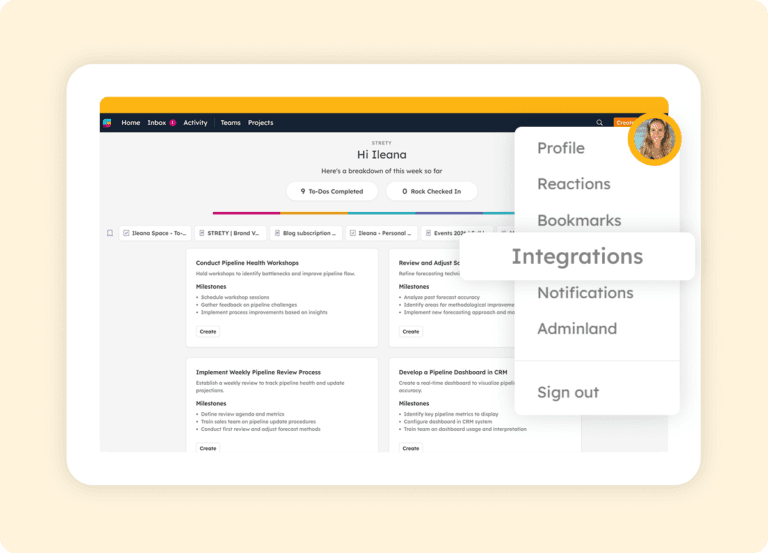
Go to your profile in Strety (the icon with your pic or initial on the top right) and choose Integrations.
Strety profile menu showing the Integrations option

Step 2:
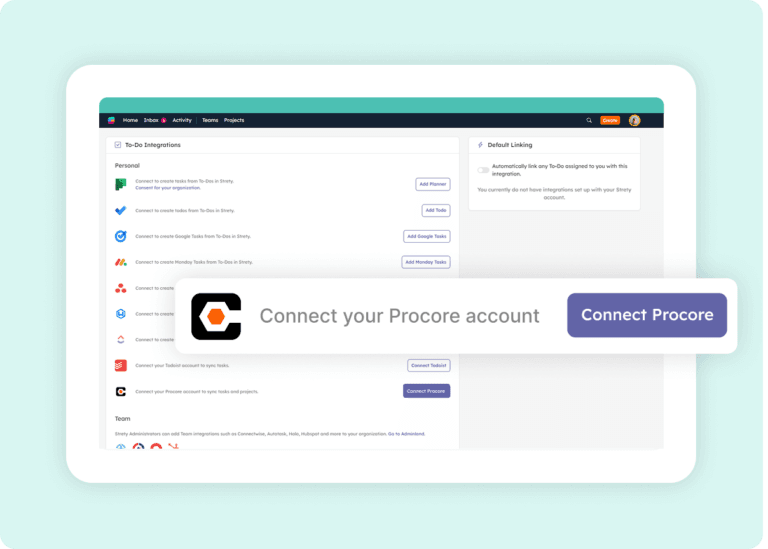
Connect Procore

Click on Connect Procore from the integrations list.
Strety integrations list with cursor on Connect Procore

Step 3:
Provide authorization
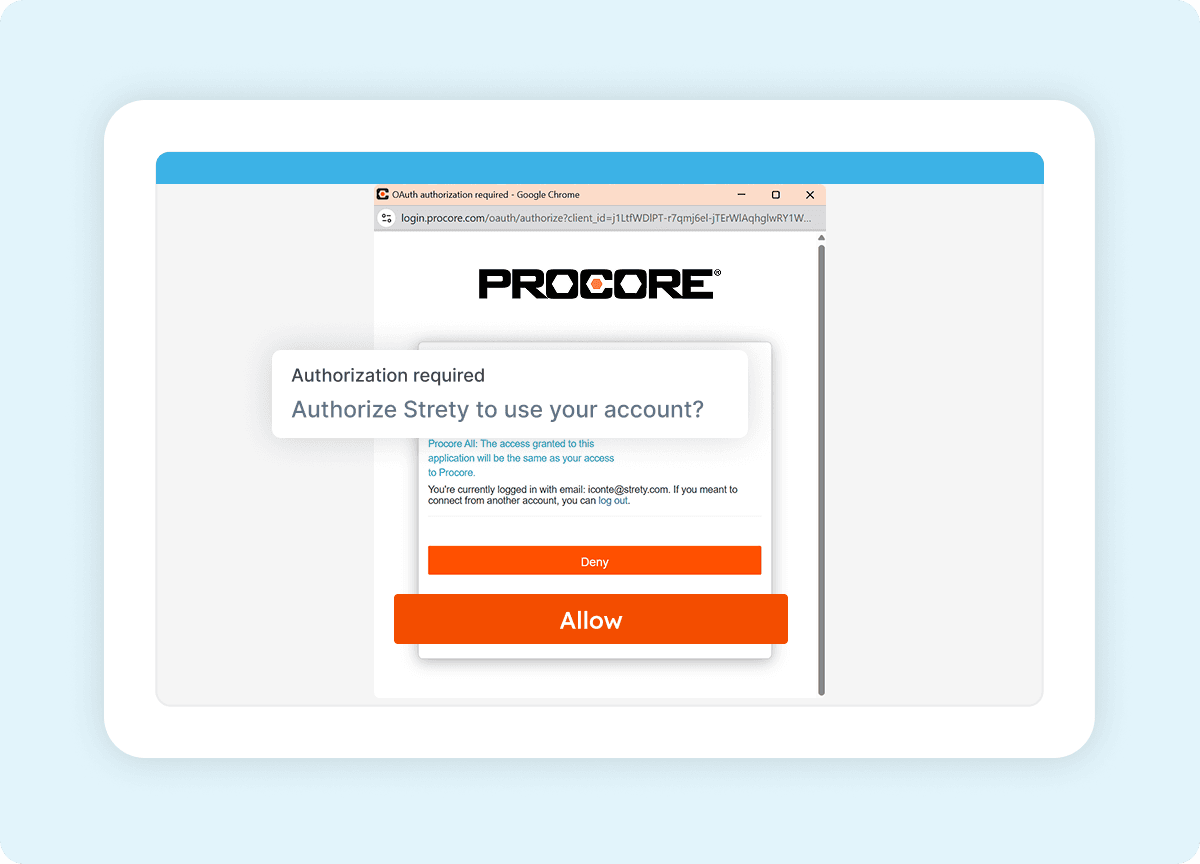
Authenticate into your Procore account in the pop-up window. Use the same email associated with your Strety account.
Procore authorization screen for connecting to Strety

Step 4:
Create your linked To Dos

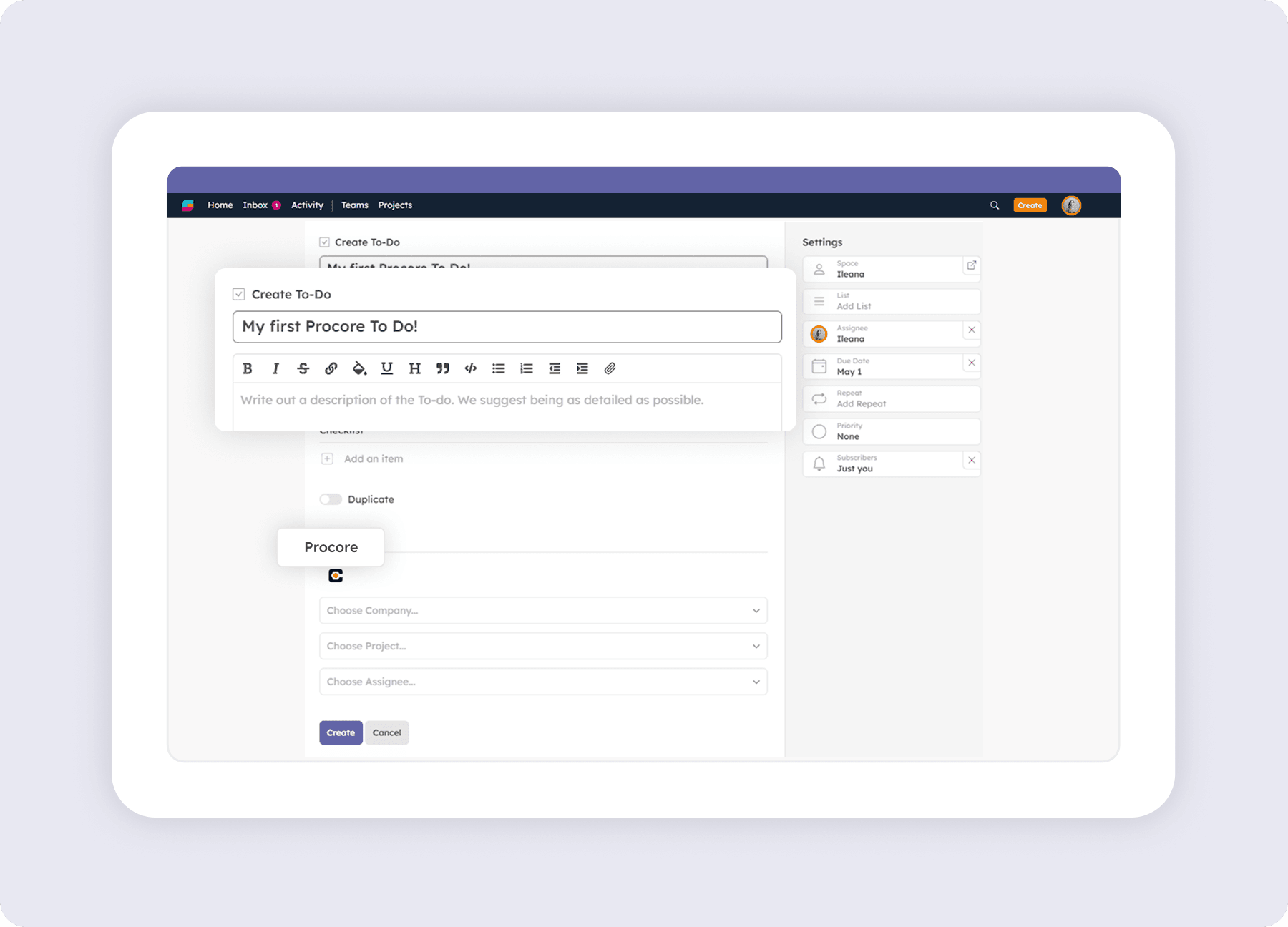
Create a To Do in Strety and select the Procore integration. Choose the Company, Project, and Assignee — your task will appear in Procore. That’s it: your Strety To Dos and Procore tasks will now sync automatically in both directions.

Frequently asked questions about Strety’s Procore Integration

After connecting Procore, create a new To Do in Strety. You’ll see the Procore icon at the bottom of the To Do, which confirms the integration is connected and ready to sync tasks between the two platforms.
A Procore admin needs to install the Strety custom app in your Procore company account once. From Procore, they’ll go to Company Tools → Admin → Company Settings → App Management → Install Custom App and enter the Strety App Version ID. Once installed, every user on the account can connect their personal Strety integration without admin help.

Yes. The Procore integration is part of Strety’s integration ecosystem and available to all users at no additional cost. You’ll just need an active Procore account (with the Strety app installed by your admin) to connect it.

The admin install in Procore is one-time and applies to your whole Procore company. After that, each user connects their own personal integration in Strety. You don’t need every team member to set it up — only the people who want their Strety To Dos linked to Procore.
Yes. Once the Procore integration is installed, you’ll see an option to set it as your personal default. When enabled, every new To Do assigned to you will automatically link to Procore — saving clicks on every task.
Two fields sync both ways at all times: Task Status and Due Date. If you mark a task complete or change its due date in either Strety or Procore, the linked item updates automatically in the other platform.
Yes. Assignee, Description, and Task Title sync only when a task is initially created. Changes to those fields after creation won’t sync between Strety and Procore. Status and Due Date sync both ways at all times.
Strety syncs with Procore every 30 minutes automatically. You can also trigger a manual sync directly from any linked To Do if you need an update faster.
Enable the “Send unsent task items” setting in your Strety Procore integration. Go to your profile → Integrations → Procore → Settings, toggle on “Send unsent task items,” and click Save. Strety will then automatically push pending task notifications in Procore whenever a new task is created from your linked To Dos.
Procore queues new task notifications instead of sending them immediately to avoid overwhelming users when many tasks are created at once. The “Send unsent task items” setting in Strety overrides this for tasks created through the integration, so assignees are notified right away. Note: if multiple people work in the same Procore project, this setting will also send pending notifications for tasks created directly in Procore by others.
Yes. Once a task is marked complete in Procore, the linked To Do will close in Strety on the next sync, thanks to the two-way connection.
Yes. When creating a linked To Do in Strety, you choose the Procore Company, Project, and Assignee — keeping your EOS work organized within your existing Procore structure.

Yes. Strety supports multiple To Do integrations including Procore, Asana, ClickUp, Microsoft To Do, Microsoft Planner, Monday.com, HubSpot, Google Tasks, Todoist, and several PSAs. When creating a new To Do, you choose which integration to link it to.

The integration is built for construction teams who run their accountability and meeting cadence in Strety and manage projects in Procore. It’s especially useful for general contractors, owners, and project managers who want their EOS Rocks and Procore project tasks connected without manual updates.

What people love about Strety’s To Do integrations 💜

We also like the way that when we create a To Do it automatically adds a ticket assigned to the user in our PSA tool.
Strety helps me bring structure, accountability, and strategic visibility to small and mid-sized businesses… It reduces the overhead of managing multiple tools and gives clients a single source of truth for execution.

More to Explore

Strety Help Docs

Help Docs

Want a full guide on setting up the Strety + Procore integration? Start here.
Strety logo and other integrations logo, including Asana, HubSpot, Slack, Planner, Teams and Google

All Integrations

Discover more of Strety’s integrations to connect your fav tools with your EOS® implementation.
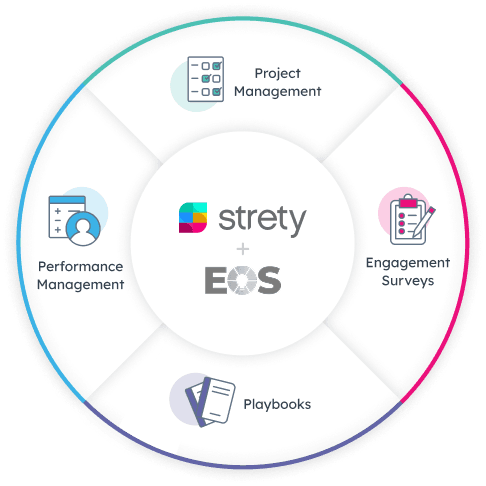
Strety wheel showing EOS+ features, including Project Management, Engagement Surveys, Playbooks, Performance Management

More Features

Check out Strety’s built-in tools 
for EOS® implementation plus everyday execution.

Want to test-drive the Strety + Procore integration?

Sign up for your free trial now to connect your EOS software with your construction project management tool. Save time, save clicks, save sanity.
;