
Microsoft Teams Integration
Strety's Microsoft Teams Integration: Bring EOS where you already live
Does your team live in Microsoft? Strety’s email, chat, and notification integrations — plus a standalone app in Teams and Outlook — let you run EOS everywhere you already work. Built for Microsoft shops who want to drive better EOS adoption throughout their orgs.
How the Strety + Microsoft Teams integration works
Unify your workflow by combining Strety and Microsoft Teams and run EOS right in your fav comms channel.

Get the full Strety experience
Navigate in Strety directly within Microsoft Teams — no extra tabs needed. It’s the two-in-one experience that leads you to calmer and more efficient days.

Create from Microsoft Teams
Create Strety To Dos, Issues, Headlines or Shoutouts right from Teams — stay in your chat and keep your EOS work flowing.

Get EOS® notifications
Stay updated on everything Strety without switching platforms — get notifications right in your chat!
How to set up the Microsoft Teams integration in Strety
In just four easy steps you can set up the Strety Microsoft Teams integration — enjoy working smarter in fewer tabs! Note: you’ll need the same email address for Microsoft Teams and Strety.
Step 1:
Add the Strety App
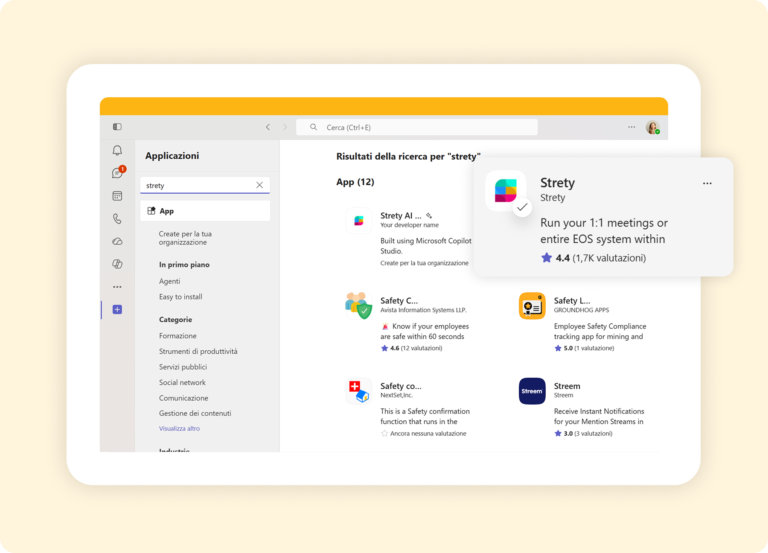
When you are in Microsoft Teams, go to the App section on the left hand side, and look for Strety. From the search results, click on the Strety icon and proceed to add it. Once installed, ensure you pin the Strety app to keep it within reach.
Step 2:
Navigate in Strety
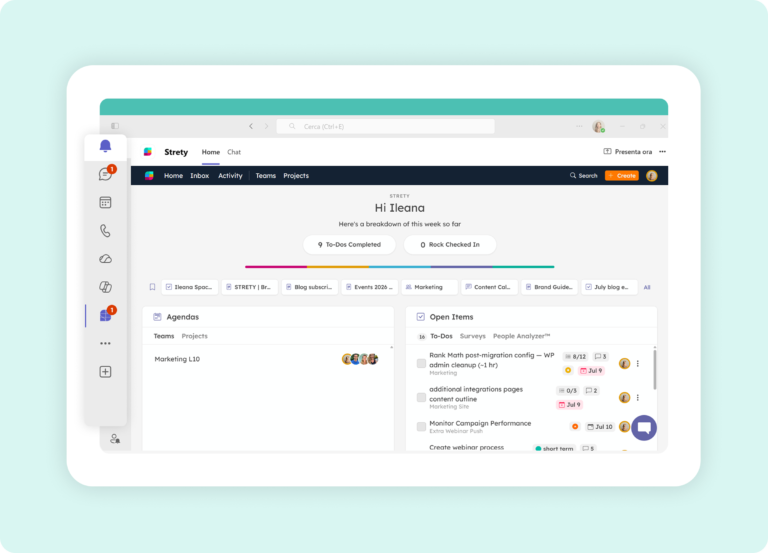
You’re now connected with Strety from Microsoft Teams! Start navigating your EOS workflow in Strety directly from your comms platform.
Step 3:
Create Strety items
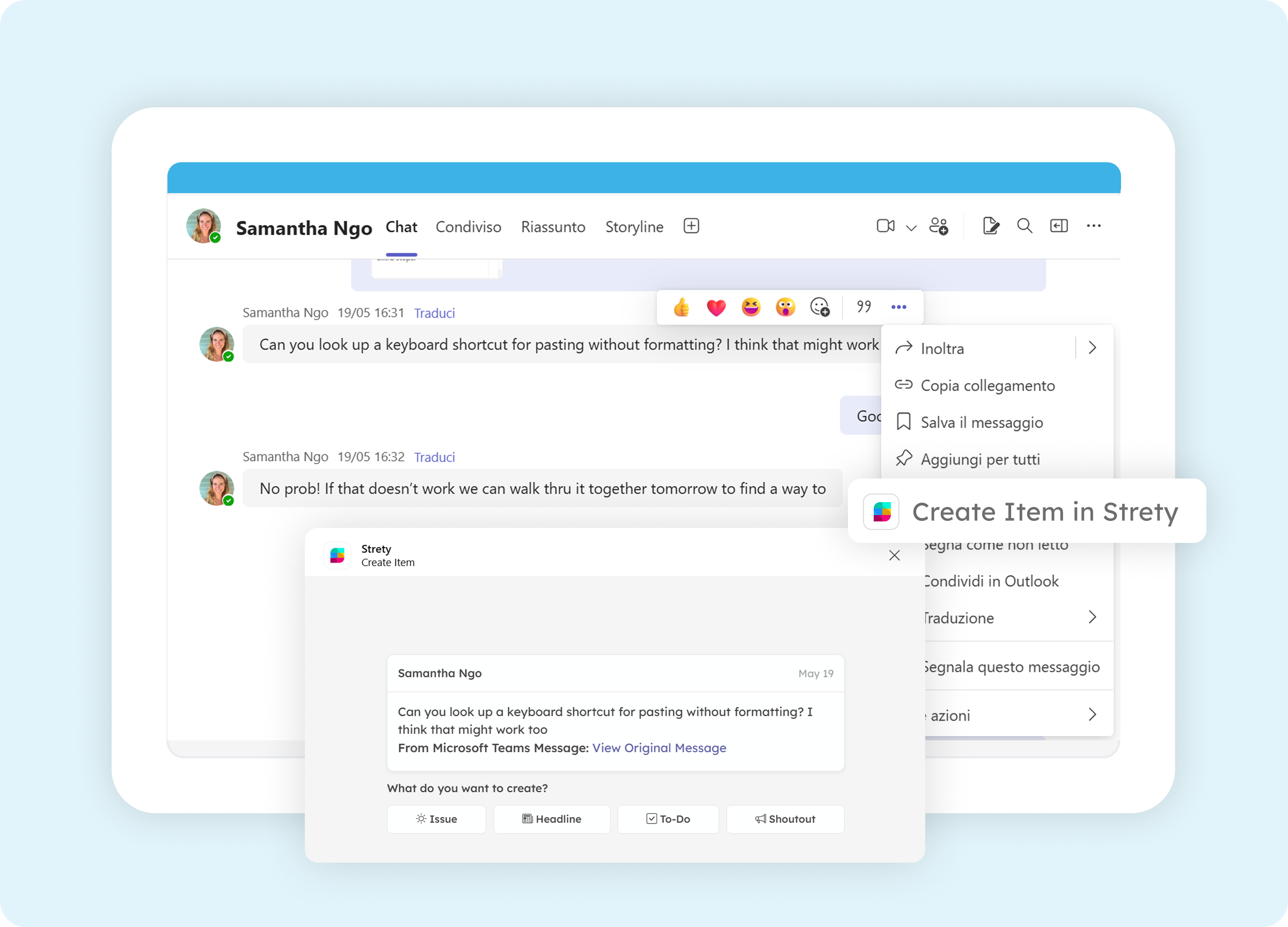
Anything from your chat needs to become a Strety item? Create a To Do, Issue, Headline or Shoutout by clicking on the massage options (from the three dots). In a few clicks you’ll have your Strety item without ever leaving Teams.
Step 4:
Get Strety notifications
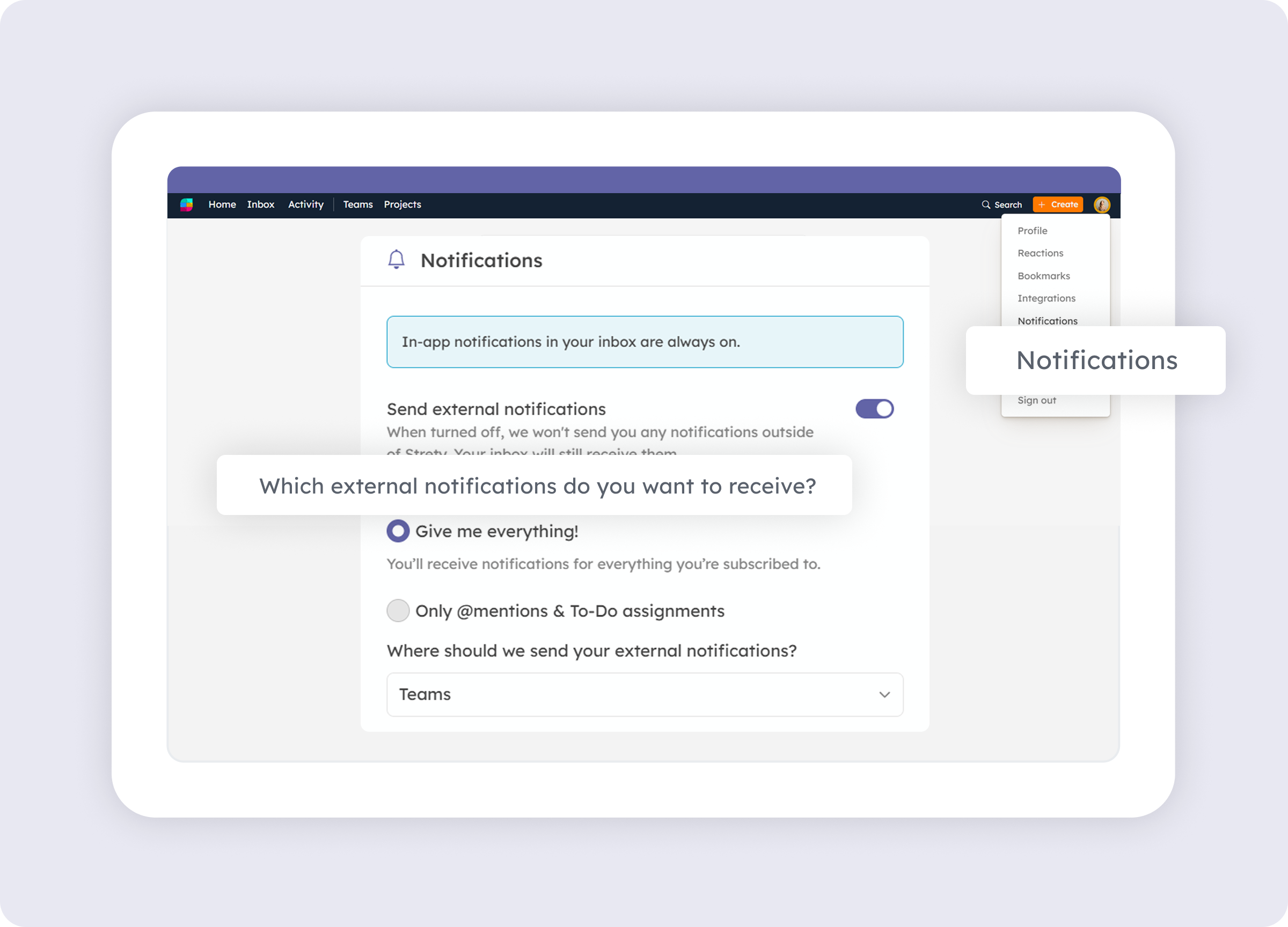
Stay in the loop with Strety notifications landing in your chat. To set this up, go to Notifications under your Strety profile, select Teams from the available options and save. That’s it, you’ll now get it all!

Frequently asked questions about Strety’s Microsoft Teams Integration
How do I know if Strety has been integrated correctly in Microsoft Teams?
After you add Strety as your EOS software integration in Microsoft Teams, you will see the Strety icon appearing on your Microsoft Teams’ left hand bar. Click on it to start your Strety journey in Teams.
How do I get Strety notifications in Microsoft Teams?
After you turn on Microsoft Teams notifications in Strety, just sit back. All notifications will be delivered directly in your Teams’ chat from a Strety dedicated channel.
Is the Microsoft Teams integration included with Strety?
Yes. The Microsoft Teams integration is part of Strety’s integration ecosystem and available to all users at no additional cost. You’ll just need an active Microsoft Teams account to make the connection.
Is Microsoft Teams an org-wide integration in Strety?
No. Microsoft Teams is a personal integration in Strety, and you can add it to your individual workflow even if your company hasn’t rolled it out to the whole team. Set it up whenever you’re ready.
What items can I create in Strety from my chats in Microsoft Teams?
While chatting with your colleagues in Microsoft Teams, you can easily create a Strety To Do, Issue, Headline or Shoutout from the three dots menu of the message. Your work will move faster.
What other integrations does Strety support?
Strety meets you right where you work, with multiple integrations, including Asana, Slack, Microsoft To Do, Microsoft Planner, Monday.com, HubSpot, ClickUp, Google Tasks, Todoist, several PSAs, and MCPs like Claude and ChatGPT.
Who is the Strety + Microsoft Teams integration built for?
The Microsoft Teams integration is for EOS teams who run their accountability and meeting cadence in Strety and use Microsoft Teams for daily execution. It’s particularly useful for Integrators, Visionaries, and team leads who strive to get their opps aligned with their EOS efforts.
What people love about the Strety’s Microsoft Teams integration 

I love the fact that Strety is integrated within Teams, which we try to use throughout our whole organization. That integration immediately checked the box of lightening the load of log-ins for our team.

Strety has been a ‘breath of fresh air’ for us! It’s baked right into Microsoft Teams, so no more app-hopping and getting lost in 29 open tabs.
More to Explore
Help Docs
Want a full walkthrough on setting up the Strety + Microsoft Teams integration? Start here.

All Integrations
Discover more of Strety’s integrations to connect your fav tools with your EOS® implementation.
More Features
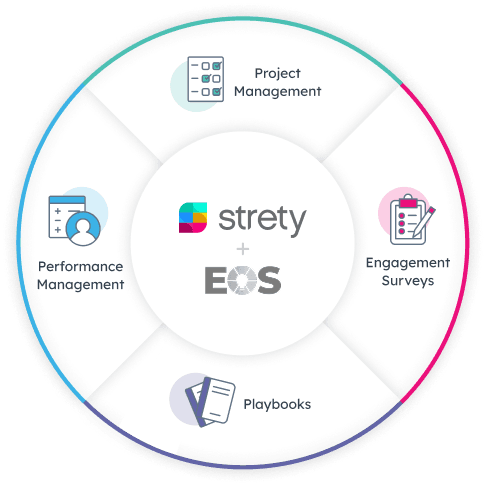
Check out Strety’s built-in tools for EOS® implementation plus everyday execution.
Work from fewer tabs with the Strety + Microsoft Teams integration
Start your free trial now to experience how it feels to get your EOS workflow moving without 29 open tabs 😎